How to set up notifications and a Telegram group in Homebears
This guide shows you how to read your inbox, choose what reaches you by email or push, turn on push on each device and link a Telegram group for the whole circle. The short version: open Settings, flip the switches under “what reaches you” and tap Turn on push.
Read your notifications
- In your circle, tap the bell at the top. A small number on it shows how many are unread.
- Tap a notification to go straight to what it’s about – the expense, the chore or the list.
- If you’re in more than one circle, switch between This circle and All circles.
- When something is unread, tap the double tick at the top to Mark all read.
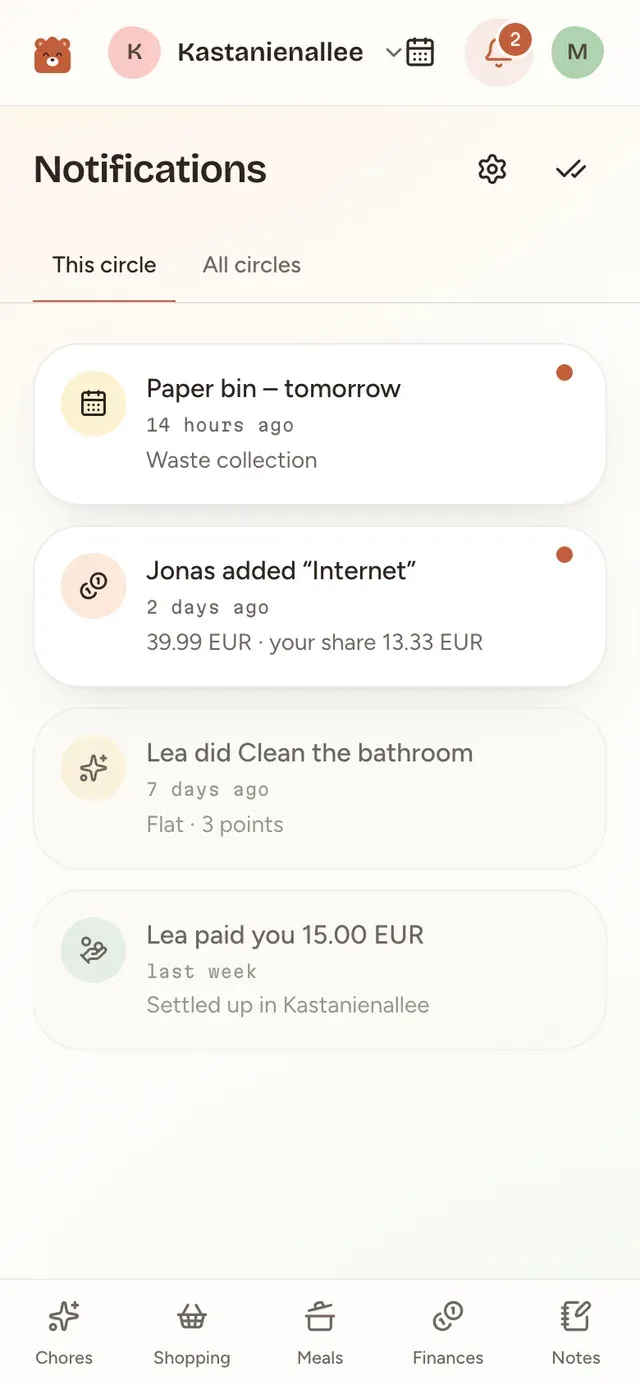
Everything always lands here, whatever you choose below. You never get notified about things you did yourself.
Choose what reaches you
- Tap the gear at the top of the notifications page, or tap your picture at the top right and choose Settings.
- Scroll to what reaches you. Each event has a switch for email and one for push.
- Turn on what you want to receive and turn off the rest. Changes are saved straight away.
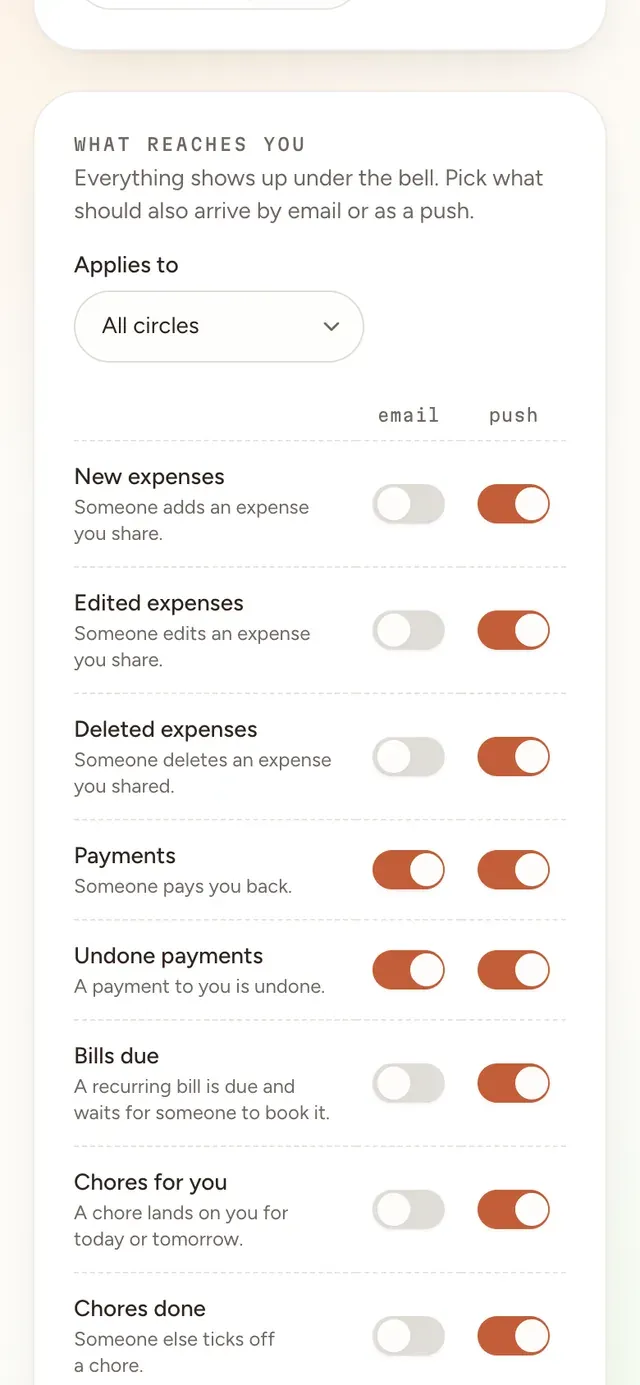
By default, email is on only for payments, undone payments, accepted invitations and new members; push is on for money, chores, shopping and calendar reminders.
Set different choices for one circle
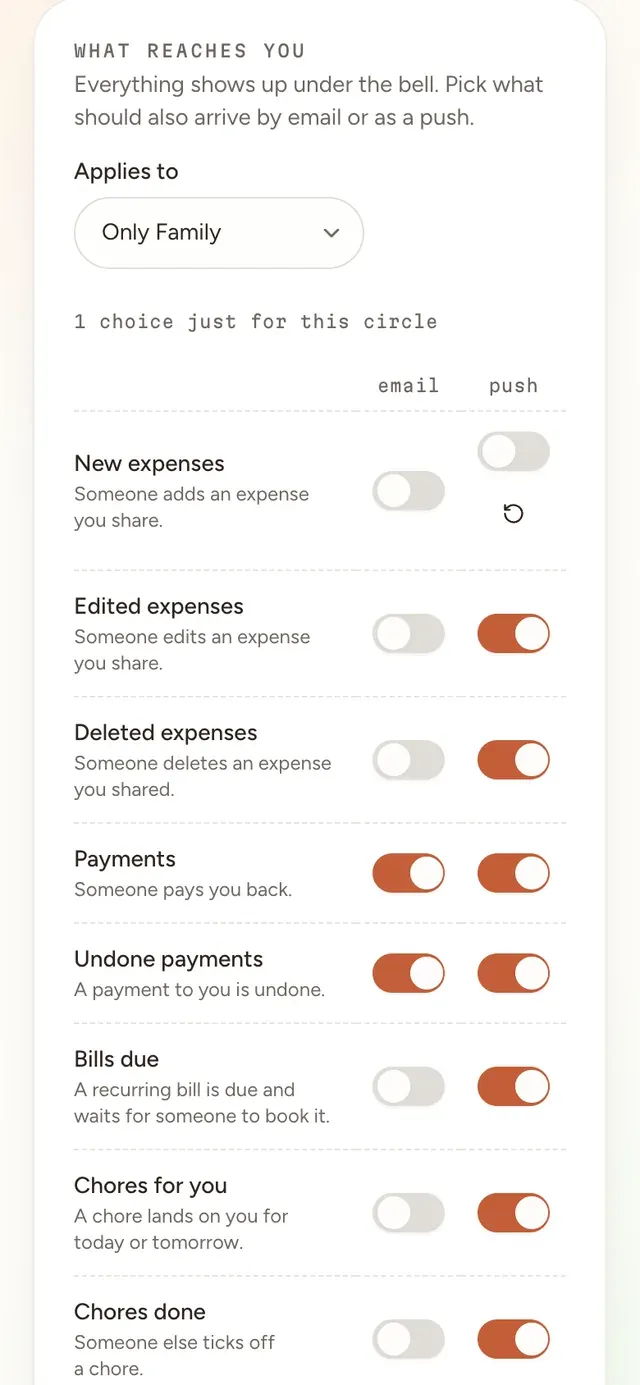
- Under what reaches you, open Applies to and pick Only followed by the circle’s name.
- Flip the switches you want to differ for that circle. A note shows how many choices are just for this circle.
- To go back to the all-circles setting for one switch, tap the small arrow under it.
Turn on push on this device
- Open Settings on the phone or computer that should get pings.
- Under this device, tap Turn on push.
- Allow notifications when your browser asks. The section then says Push is on for this browser.
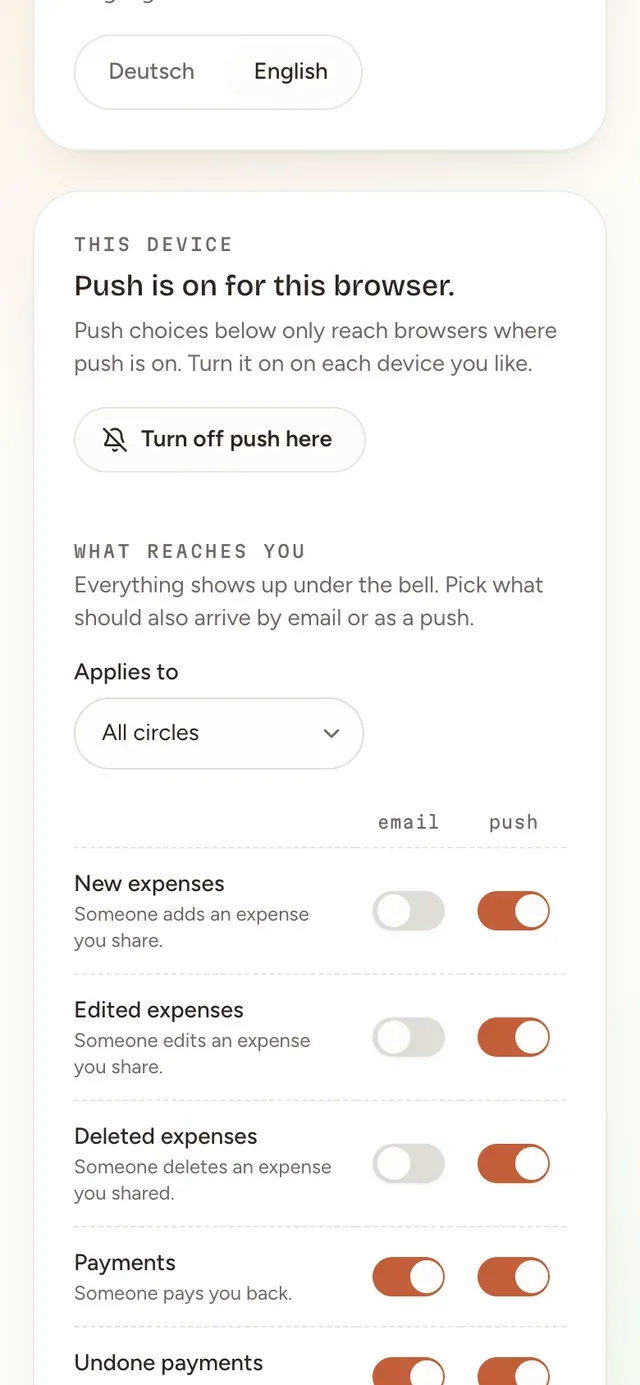
Push is set up per device: do this on each phone and computer you use. If your browser says notifications are blocked, allow them for Homebears in the browser’s site settings and come back.
On an iPhone or iPad, add Homebears to your Home Screen first: open it in Safari, tap the share button, choose Add to Home Screen, then open Homebears from the new icon. Only then does Turn on push appear in Settings.
Link a Telegram group
Circle owners can connect one Telegram group per circle. The bot then posts new expenses, payments, bills due, finished chores, the morning digest and calendar reminders there.
- Tap your picture at the top right and choose Circle settings.
- Under Link a Telegram group, tap Create a link.
- Tap Add to a Telegram group and pick your group in Telegram. Telegram adds the bot and links it for you.
- Already have the bot in the group? Send the command shown in step 2 in the group instead.
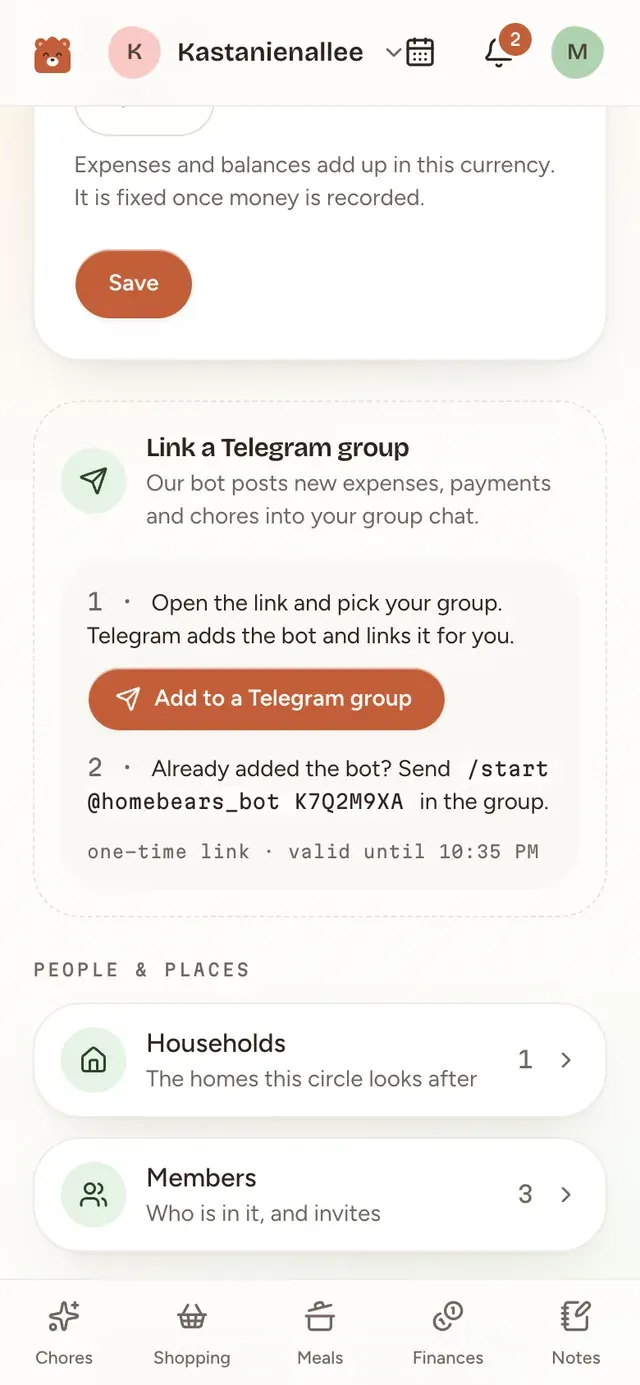
The link works once and only for a short time; the card shows until when.
Choose what the group hears
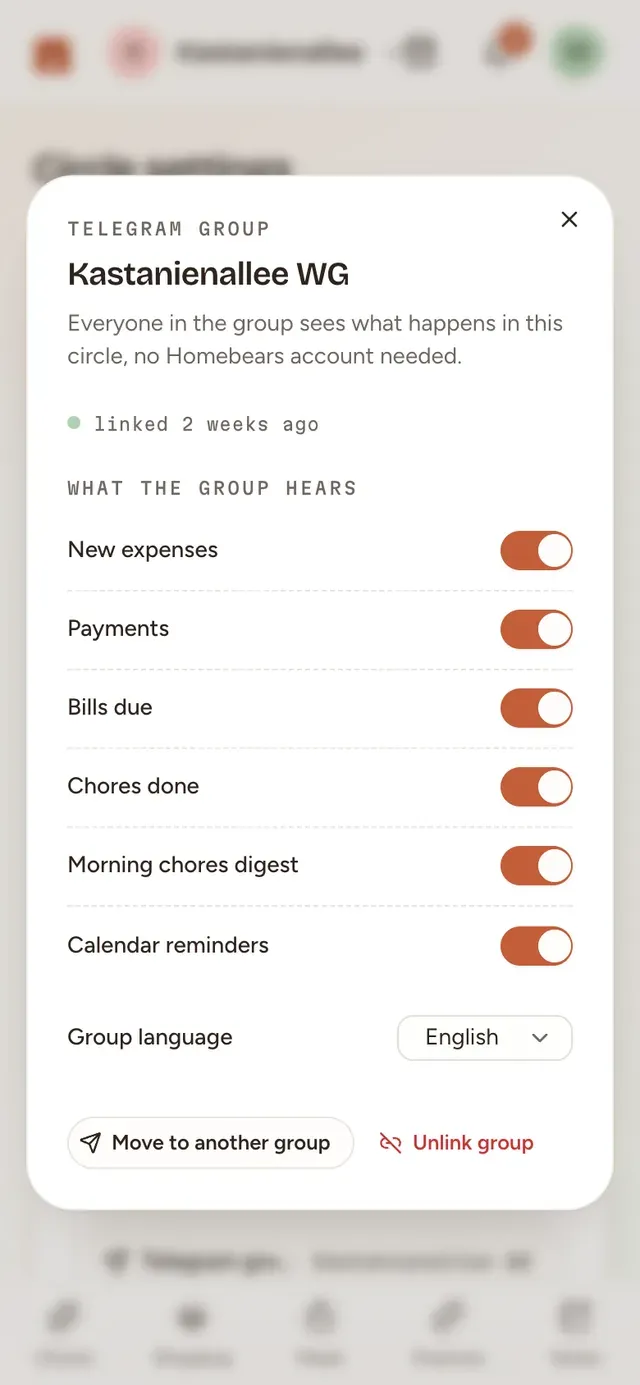
- In Circle settings, tap Telegram group.
- Under what the group hears, switch each event on or off.
- Set the Group language – it can differ from your own.
- Move to another group connects a different chat; Unlink group stops the posts.
Good to know
- The bell always gets everything; email and push are extras on top.
- Everyone gets notifications in their own language, so mixed-language flats work fine.
- Shopping list changes are bundled into one message every few minutes, and they never go to Telegram.
- The Telegram bot only posts – it doesn’t take commands or send personal messages.
- There’s no SMS and no native app; push goes through your browser.
- Only circle owners can link, move or unlink the Telegram group and change what it hears.
More on the notifications feature page. Calendar reminders are set up in the shared calendar guide; see also chores.
Questions and answers
- Why don’t I see “Turn on push” on my iPhone?
- On an iPhone or iPad, Apple only allows web push for apps added to the Home Screen. Add Homebears to your Home Screen from Safari, open it from there, and the switch appears in Settings.
- Do the others need Telegram for the group to work?
- Only the people who want to read along. Everyone in the Telegram group sees the bot’s posts, with or without a Homebears account, and the app keeps working the same for everyone else.