How to set up a chore rota in Homebears
This guide shows you how to add chores to your household, decide who does them and how often, tick them off and see who’s been busy. The short version – tap **Chores**, tap the round + button, give the chore a rhythm and a pool of people, and Homebears works out whose turn it is.
Create a chore
- Tap Chores in the bottom bar.
- Tap the round + button at the bottom right. On a computer, New chore is at the top right.
- Type a Name, such as “Clean the bathroom”, and an Area, such as “Bathroom”. Homebears picks an icon from the name; tap the icon to choose another.
- Set the Points with the − and + buttons. A new chore starts at 1 point, so tap + twice for 3. Heavier chores deserve more.
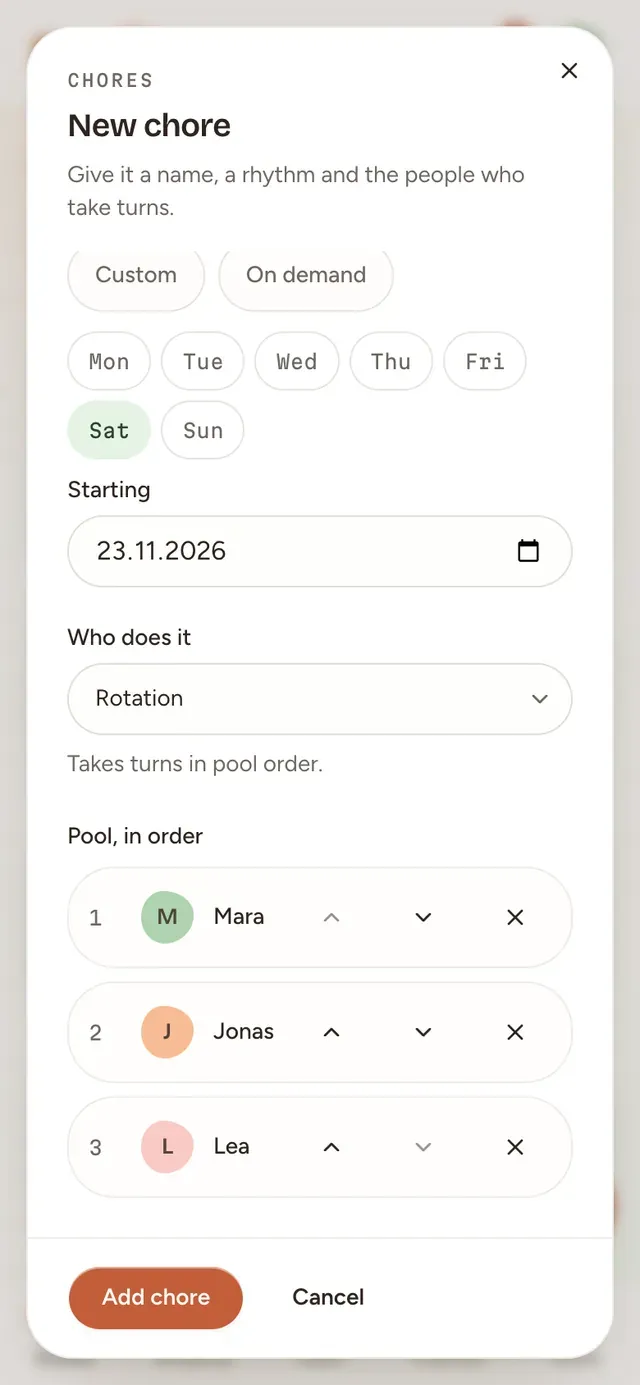
- Under How often, choose Once, Daily, Weekly, Every 2 weeks, Monthly, Custom or On demand. For a weekly chore, today’s weekday is already selected: tap the days it’s due, tap today to switch it off if it isn’t one of them, then check the Starting date.
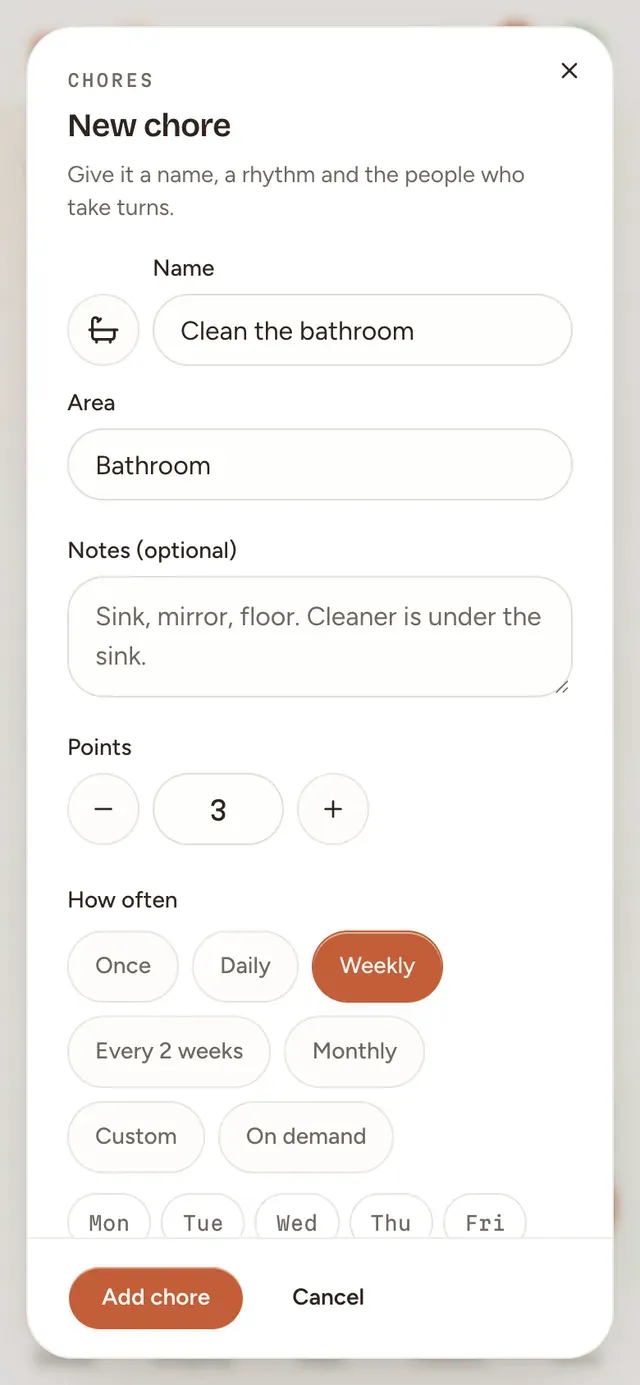
Custom covers rhythms like “every 3 days” or “every 2 months”: set Repeat every and the unit. On demand has no schedule at all – it’s for things like descaling the kettle, which you tick off whenever they’re done.
Choose who does it
- Under Who does it, pick how the chore moves between people:
- Rotation – takes turns in pool order.
- Balanced – whoever has the fewest points this period.
- Fixed – always the first person in the pool.
- Claim – up for grabs until someone takes it.
- Under Pool, in order, tap the names of everyone who should take part. Use the arrows to change the order, or the cross to take someone out again.
- Tap Add chore.
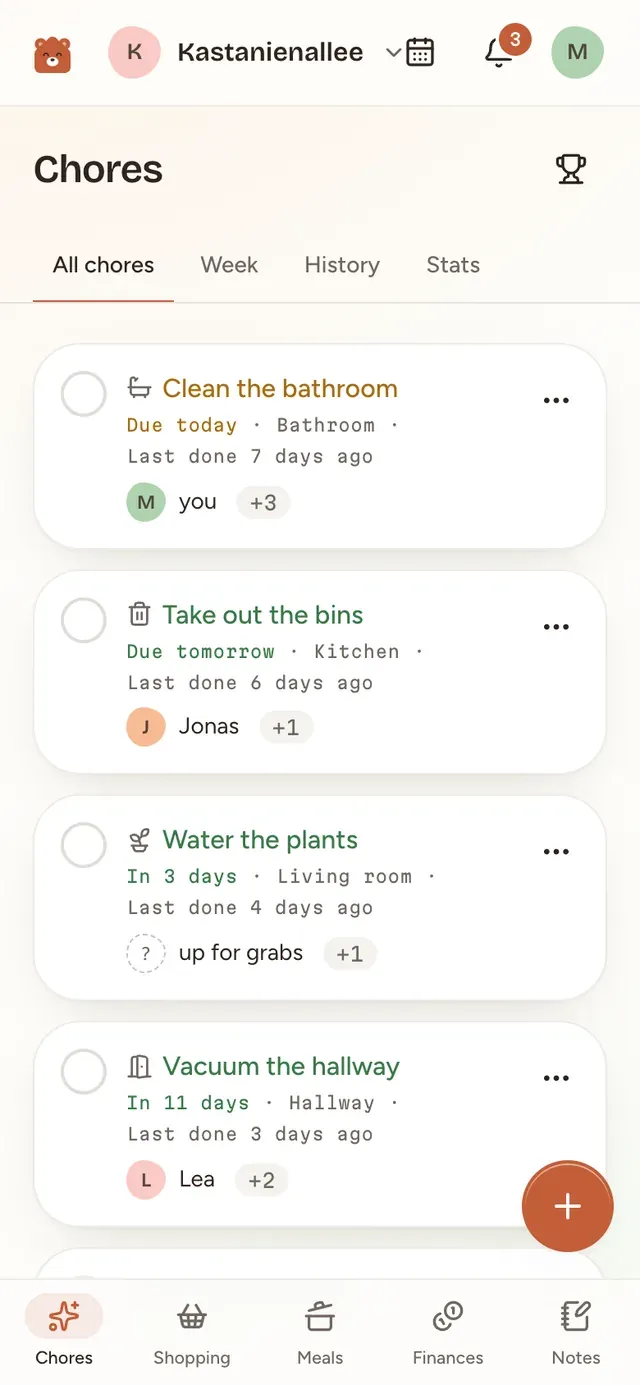
The new chore appears in All chores, next one first, with whose turn it is and its points. Homebears plans the next 14 days for you.
Tick it off
- In All chores, tap the round circle next to a chore once it’s done. Anyone can tick off any chore.
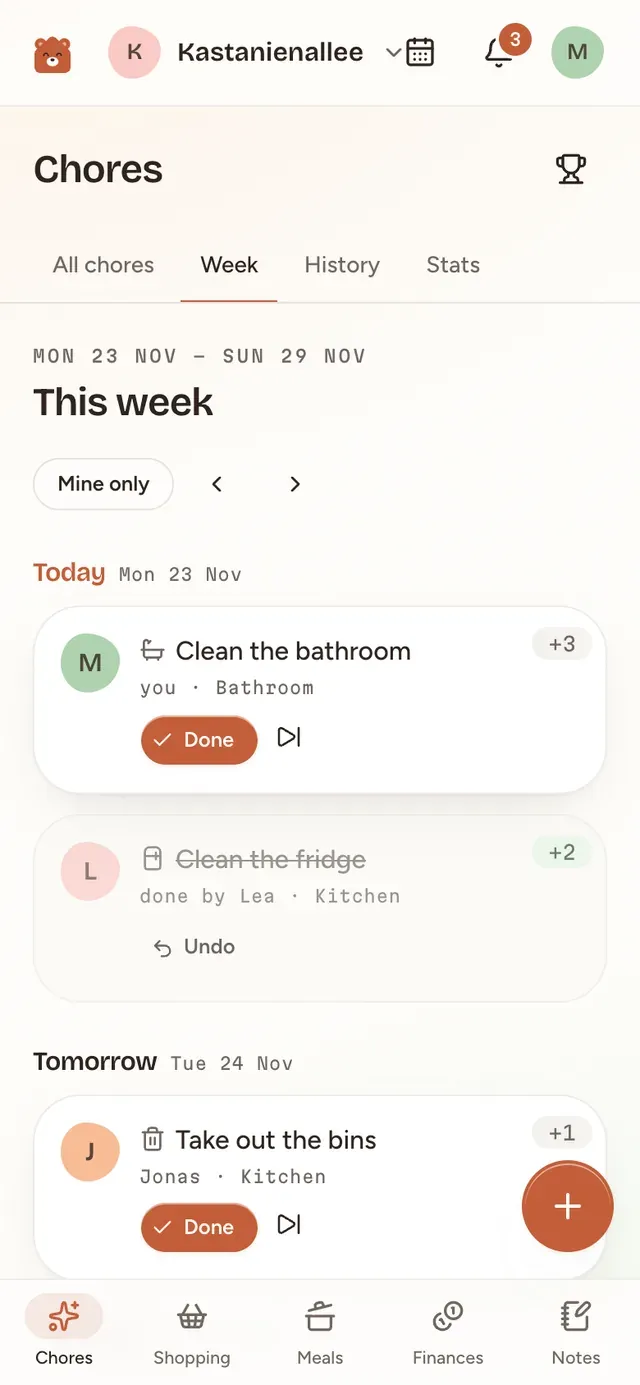
- To plan ahead, open the Week tab. Each chore shows Done, a skip arrow to Skip this turn and, for chores that are up for grabs, Claim.
- Tap Mine only to see just your chores for the week.
- Ticked the wrong one? Tap Undo – it works on the same day.
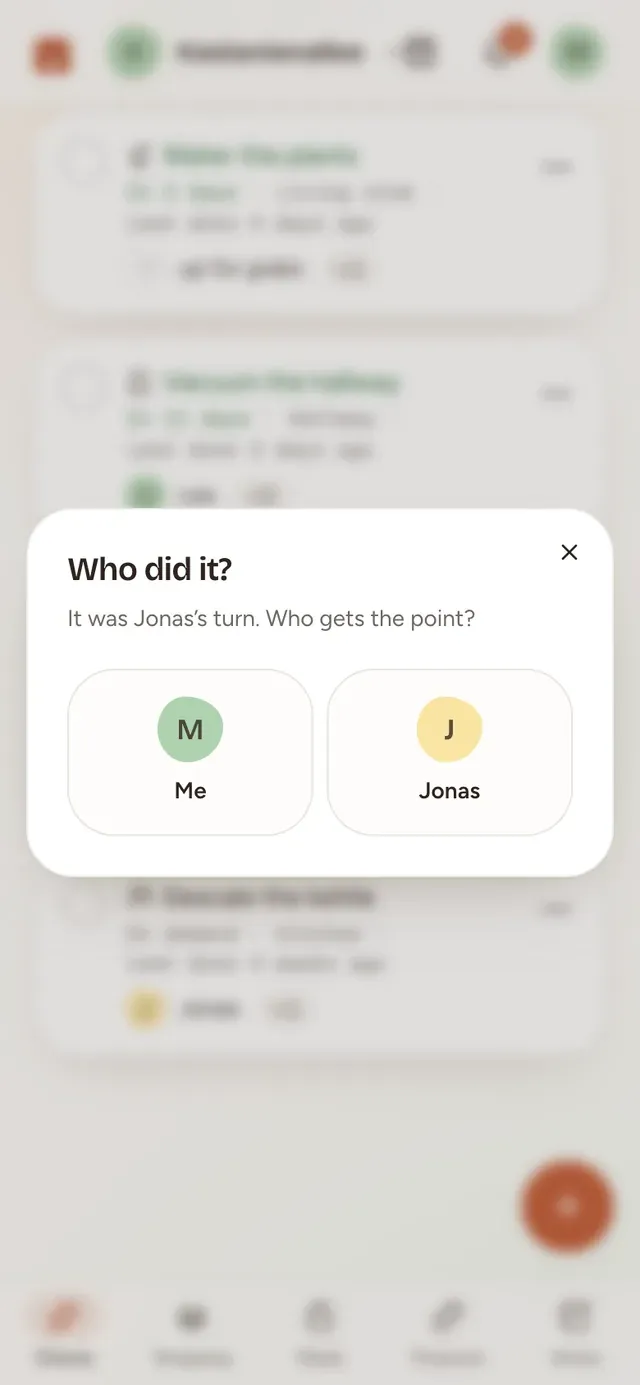
If you tick an On demand chore that was someone else’s turn, Homebears asks Who did it? Tap Me if you did it, or their name if they did it and just asked you to tick it.
Change, pause or delete a chore
- In All chores, tap ⋯ on the chore’s card.
- Change what you need and tap Save chore.
- Going away? Tap Pause – the chore stops coming round, and its history and points stay. Resume brings it back.
- Owners also see Delete. That removes the chore’s history and the points earned with it, so pausing is usually the better choice.
See the scores
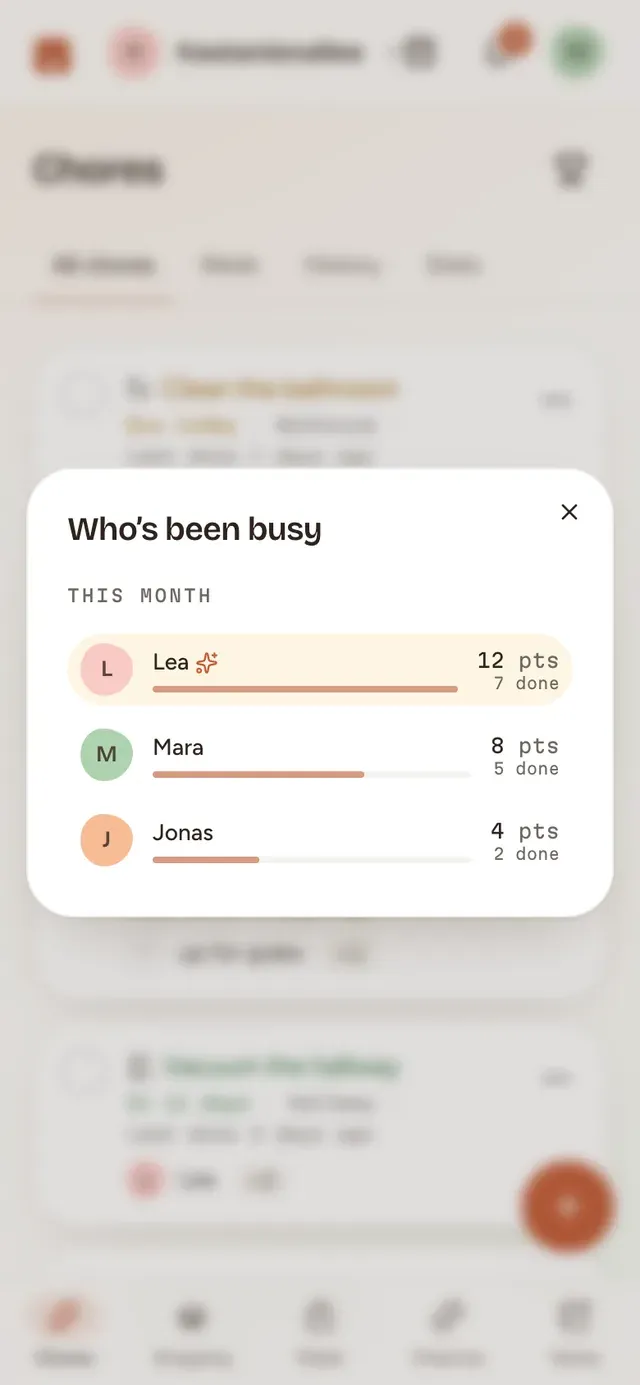
- Tap the trophy at the top of the page (Scores). Who’s been busy ranks everyone by points for this month.
- Close it again. The tabs at the top of the Chores page go further: History lists who did what, newest first.
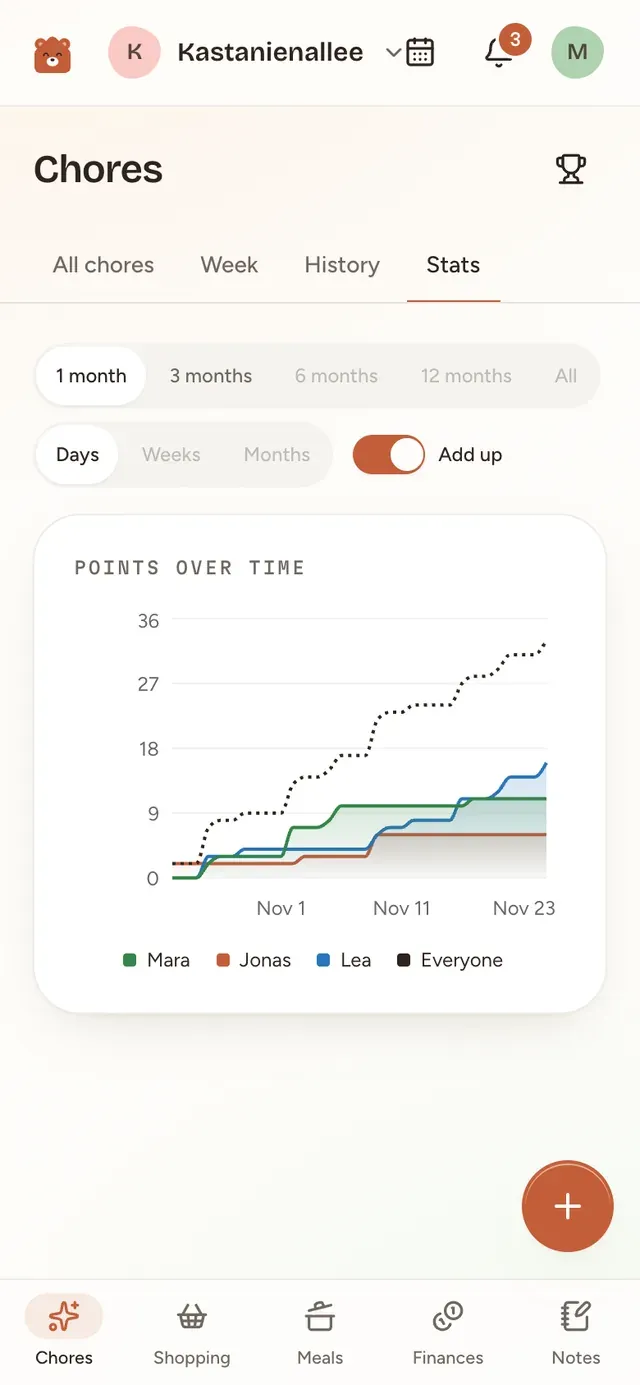
- Stats shows Points over time per person. Pick a time range, such as 3 months, to zoom out, or switch on Add up to watch the totals grow.
Good to know
- You get a notification when a chore is yours for today or tomorrow, plus a morning summary. Which events reach you is set under notifications.
- Chores belong to one household. If your circle has more than one, the form asks which household the chore is for, and each has its own rota.
- A chore that’s more than 14 days away shows “Planned for …” and can be ticked from then.
- Every person in the rota needs their own account – there are no kid profiles.
More about the rota on the chores feature page. Related guides: notifications and circles and households.
Questions and answers
- Who gets the points if I do someone else’s chore?
- You do. Whoever ticks off a scheduled chore gets its points. For an “On demand” chore that was someone else’s turn, Homebears asks “Who did it?” so you can give the points to them instead.
- Can I change how long the scores run for?
- Not in the app yet. Scores count for the current month.