How to manage circles and households in Homebears
This guide shows you how to run your circles – the groups of people you share a home life with – and the households inside them. The short version – the circle switcher at the top moves you between circles, and everything else lives under Circle settings, behind your picture.
Switch between circles
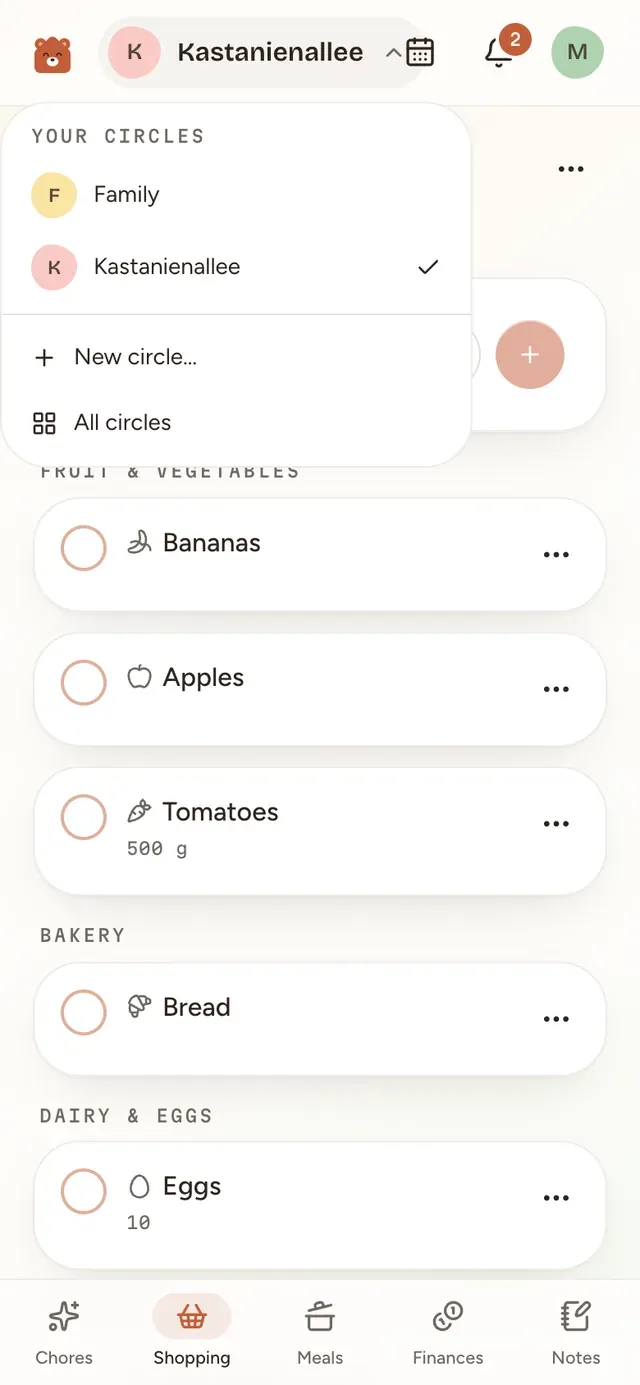
Once you’re in two or more circles, the current circle’s name appears at the top, next to the calendar.
- Tap the circle’s name.
- Pick another circle under your circles. You stay in the same section, so Shopping in one circle takes you to Shopping in the other.
- For a look across all of them, tap All circles.
Start another circle
Use a new circle for a different group of people – your family, say, next to your flatshare.
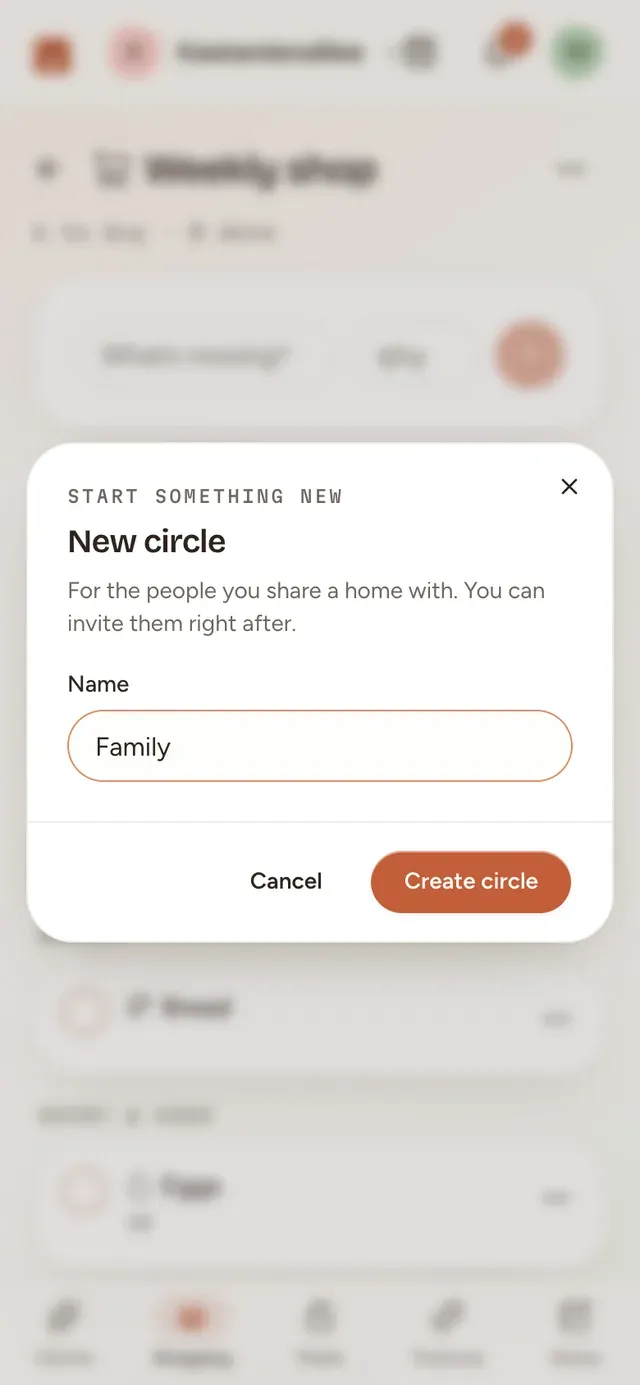
- Open the circle switcher and tap New circle…. With only one circle so far, tap your picture, choose Circle settings and tap Add another circle at the bottom.
- Enter a Name and tap Create circle.
- The new circle opens straight away, ready for you to invite people.
Add a household
A circle can look after several places – the family home and a cabin, for example. Chores and the meal plan belong to one household; notes, shopping lists and money are shared across the circle.
- Tap your picture at the top right and choose Circle settings.
- Tap Households.
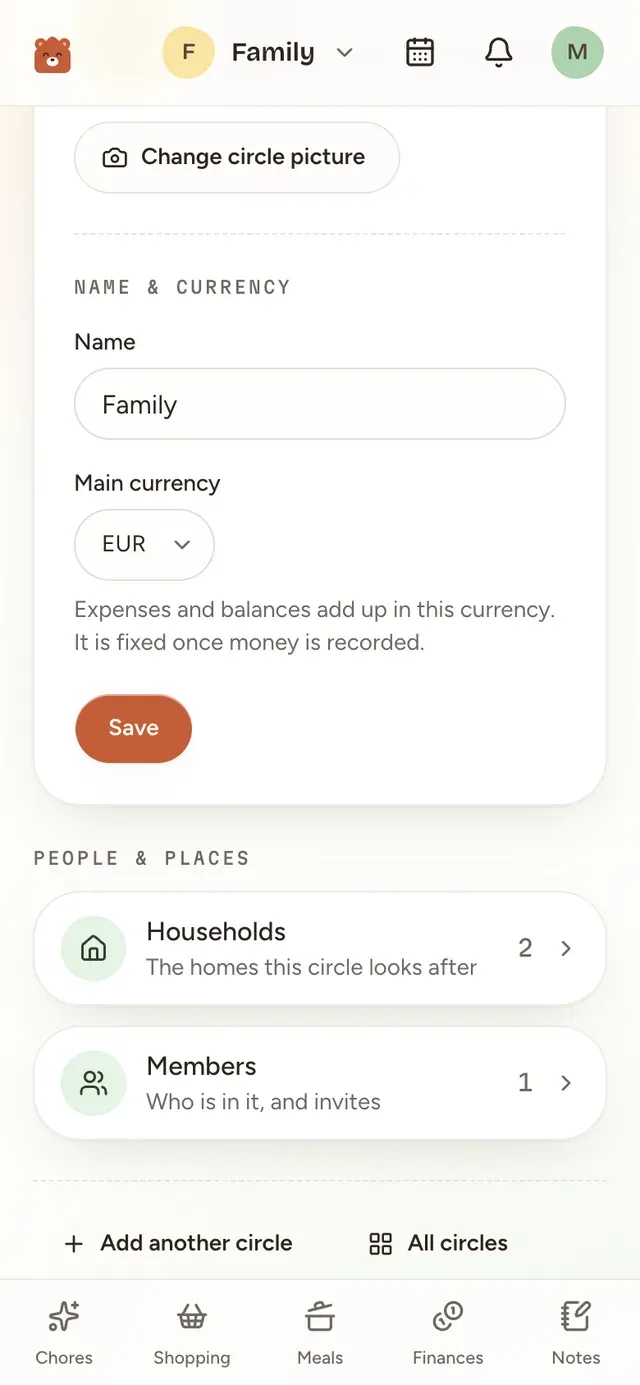
- Tap the round + button (on a computer: New household).
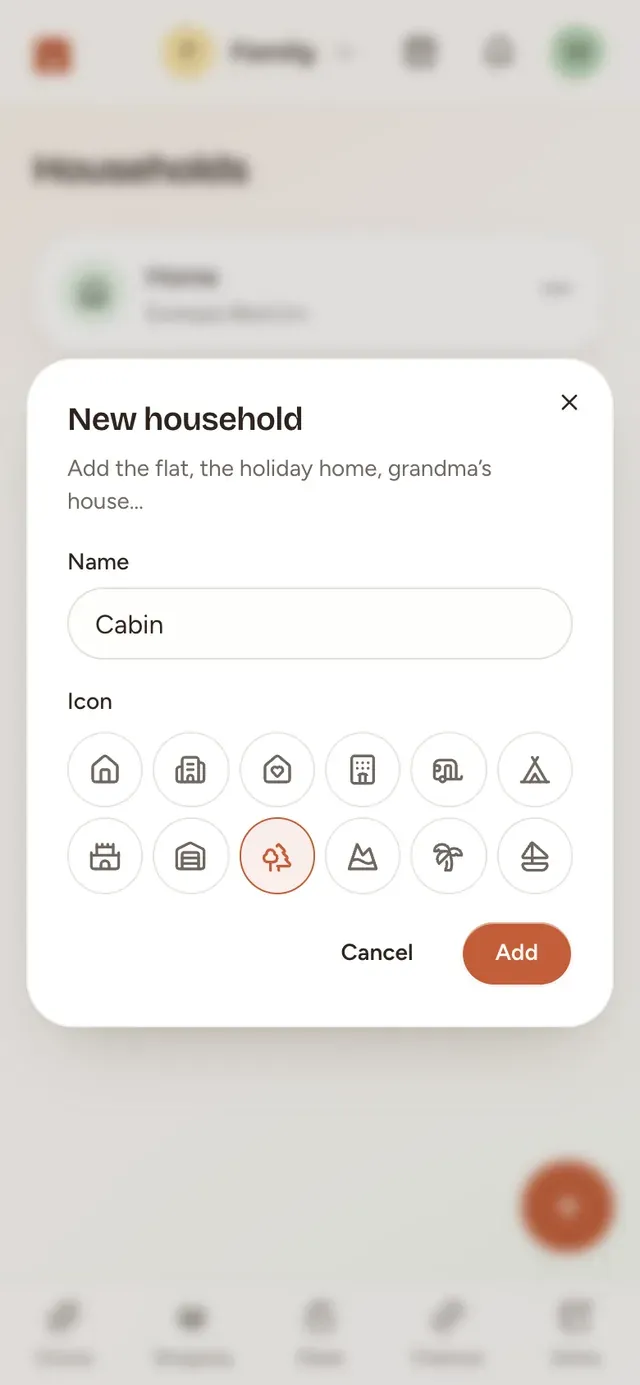
- Enter a Name, choose an Icon and tap Add.
To change a household later, tap ⋯ next to it: you can edit its name and icon, move it up or down the list, or remove it (as long as the circle keeps at least one household). Removing a household deletes its chores and budgets; notes, lists and expenses tagged with it stay in the circle without the tag.
Invite people
- In Circle settings, tap Members.
- Tap the round + button (on a computer: Invite).
- Tap Create invite link, then Share or Copy link. Or enter an Email and tap Send invite.
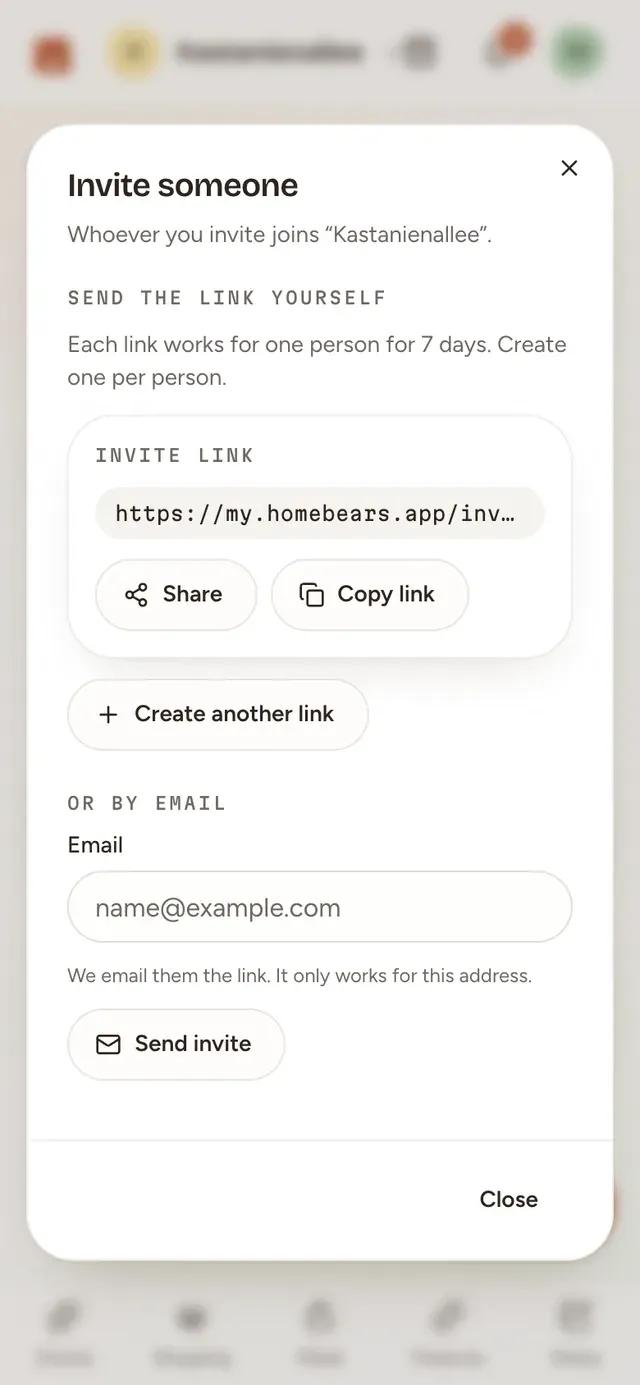
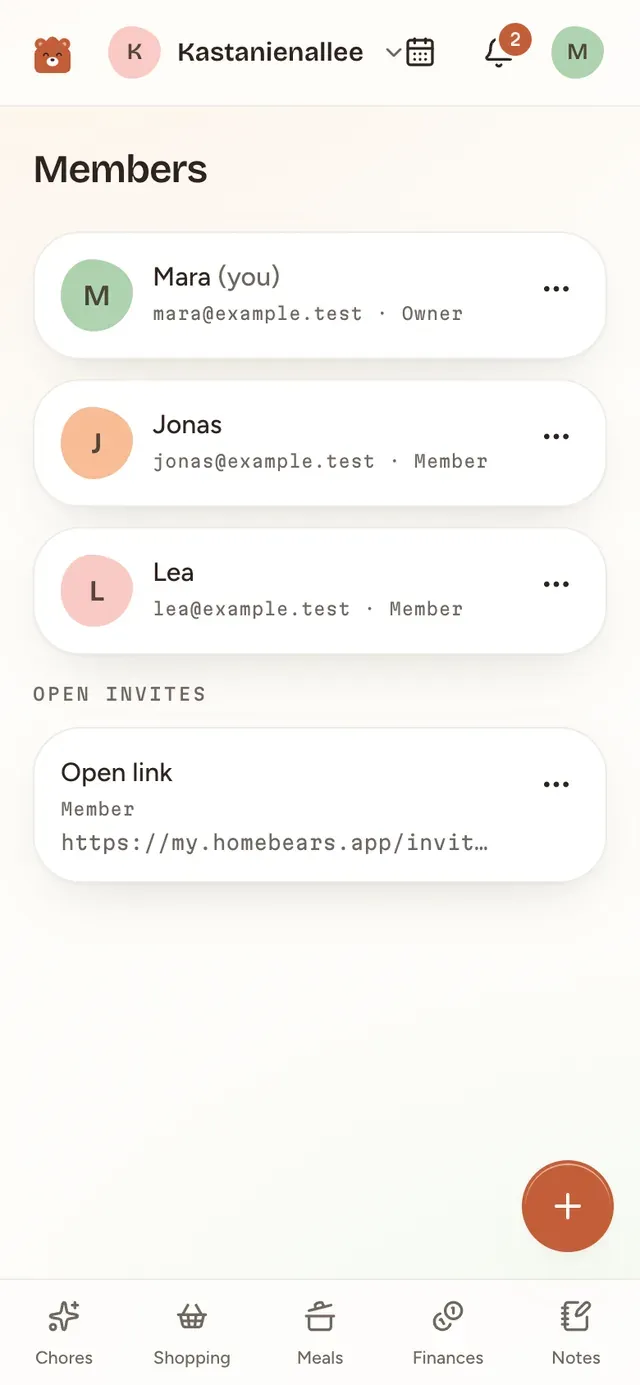
Each link works for one person for 7 days. Links that haven’t been used yet are listed under Open invites; tap ⋯ next to one to share it again, copy it or revoke it.
Change the name, picture and currency
- Open Circle settings.
- Change the Name or the Main currency and tap Save. Expenses and balances add up in the main currency, and it’s fixed once money has been recorded.
- Tap Change circle picture to give the circle a photo. Everyone in the circle sees it in the header.
Only owners can change these settings, manage households and invite people. Everyone else sees them read-only.
Hand over or leave a circle
- In Members, tap ⋯ next to your own name and choose Leave Kastanienallee.
- If you’re the last owner, pick a New owner first and tap Hand over & leave.
- If you’re the last person in the circle, leaving deletes it with all its notes, lists, chores and expenses. Homebears asks you to confirm with Delete circle.
As an owner, you can also make someone else an owner without leaving: tap ⋯ next to their name and choose Make owner. To take someone out of the circle, choose Remove Jonas (with their name) in the same menu.
If you still owe money in the circle, or are owed some, Homebears reminds you to settle up before you go.
Good to know
- Everyone in a circle sees all of its households. If someone should only see one place, give that place its own circle.
- There’s no limit on members or on how many circles you belong to. You can create two circles yourself.
- People you invite join as members. The only role change in the app is making someone an owner.
The circles and households feature page explains what’s shared where. New to Homebears? Start with getting started, then set up your shopping list.
Questions and answers
- Why don’t I see the circle switcher?
- It only appears once you’re in two or more circles. With a single circle, the circle’s name and settings sit behind your picture at the top right.
- Can I give someone else the same rights as me?
- Yes. Everyone you invite joins as a member, and an owner can make any member an owner from the Members page.