How to use the shared shopping list in Homebears
This guide shows you how to fill a shopping list together, use it in the shop and keep more than one list going. The short version – tap Shopping, type what’s missing and tap +; in the shop, tap an item to tick it off, and everyone sees who got it.
Add items
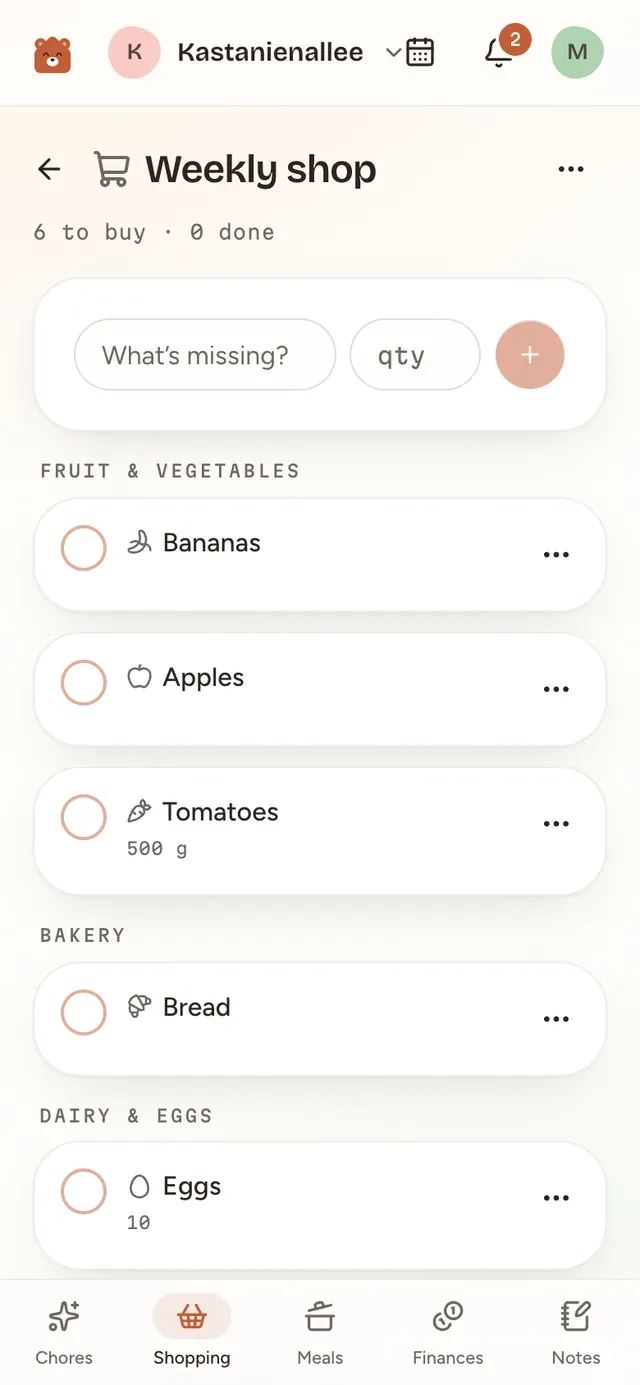
- Tap Shopping in the bottom bar. Your list opens – the one you had open last.
- Type the item into What’s missing?, for example “Oat milk”.
- Add an amount in the small qty field if you like, such as “2”.
- Tap +. The item appears on everyone’s phone straight away.
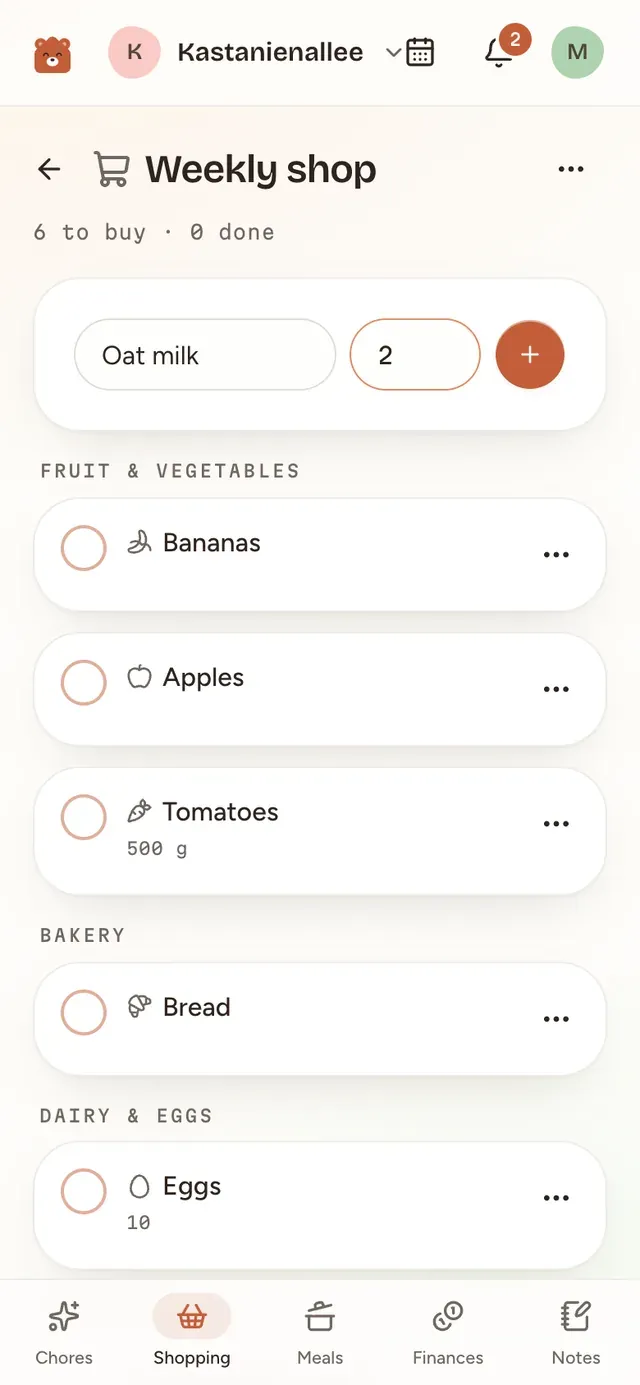
Homebears gives each item an icon and puts it in a category, so the list is sorted roughly in the order you walk through a supermarket – fruit and vegetables first, then bakery, dairy and eggs, and so on.
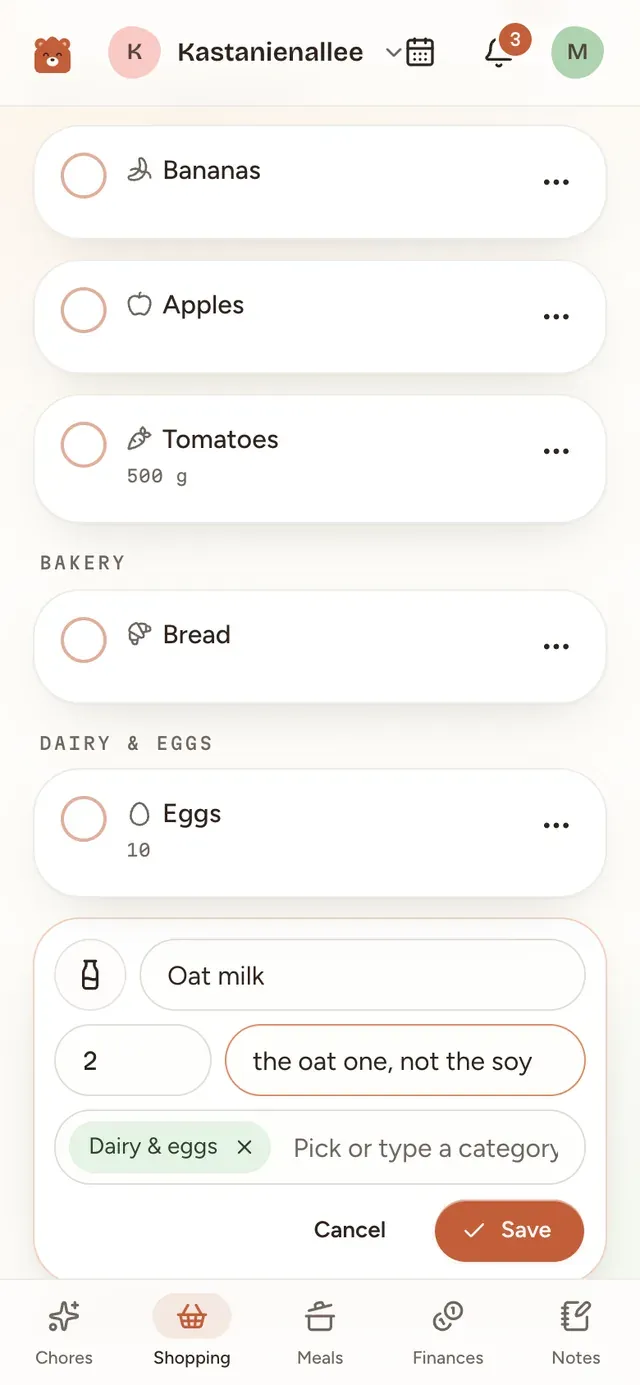
Add a note or change the category
- Tap ⋯ next to an item and choose Edit, followed by the item’s name.
- Change the name or the amount, or add a note under Note (brand, aisle…), such as “the oat one, not the soy”.
- Under Categories, pick a different category, or type a new one and tap Add with its name to create your own.
- Tap the icon to choose a different one.
- Tap Save.
Tick things off in the shop
- Tap an item to tick it off. It moves down to Done and shows who got it – “got it · you” on your phone, “got it · Mara” on everyone else’s.
- Ticked something by mistake? Tap it again.
- Back home, tap Clear checked below the list and confirm with Remove. That clears the done items for everyone.
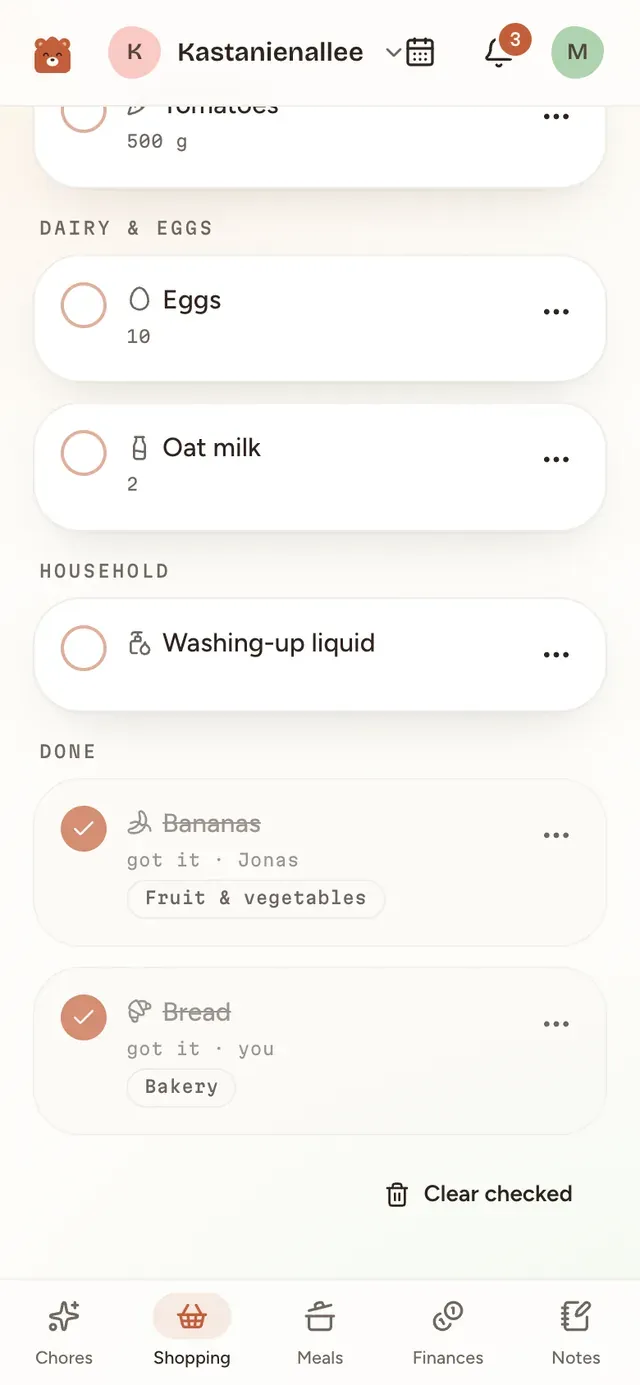
If you split up in the shop, you can both see what’s already in a trolley, because ticks show up live too.
Start another list
Keep one list per shop or occasion – the weekly shop, the DIY store, the holiday home.
- In an open list, tap the back arrow at the top left to see your Shopping lists.
- Tap the round + button (on a computer: New list).
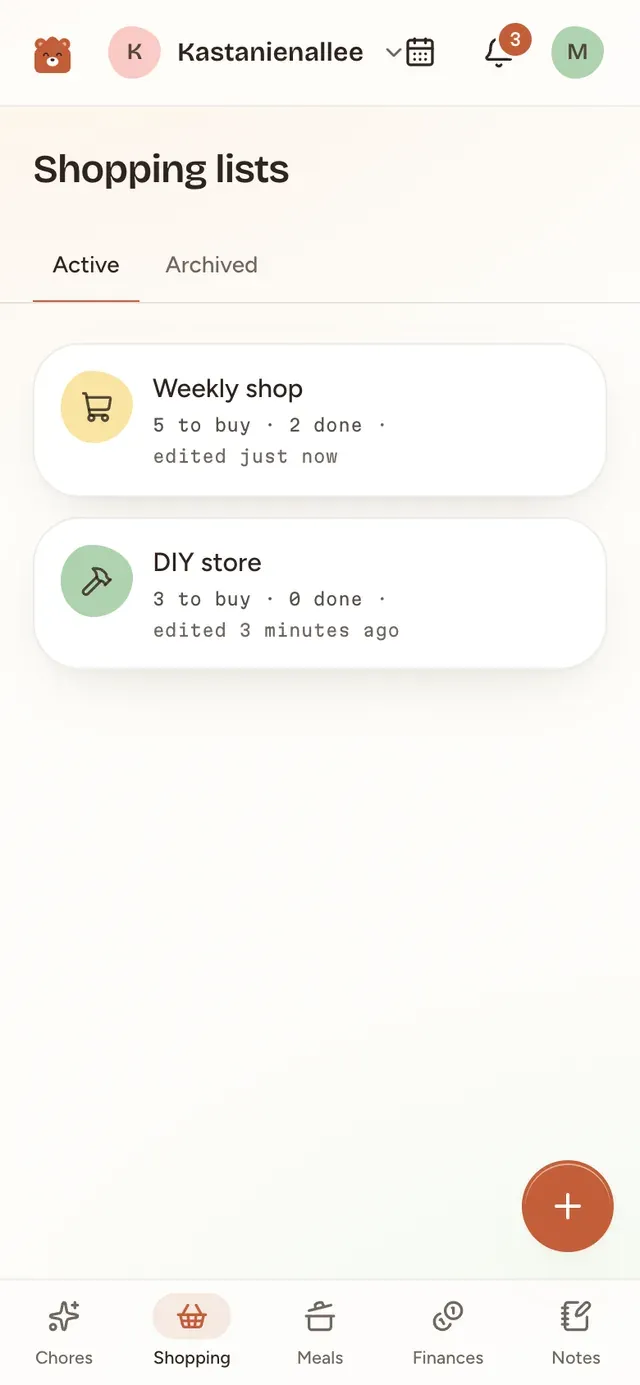
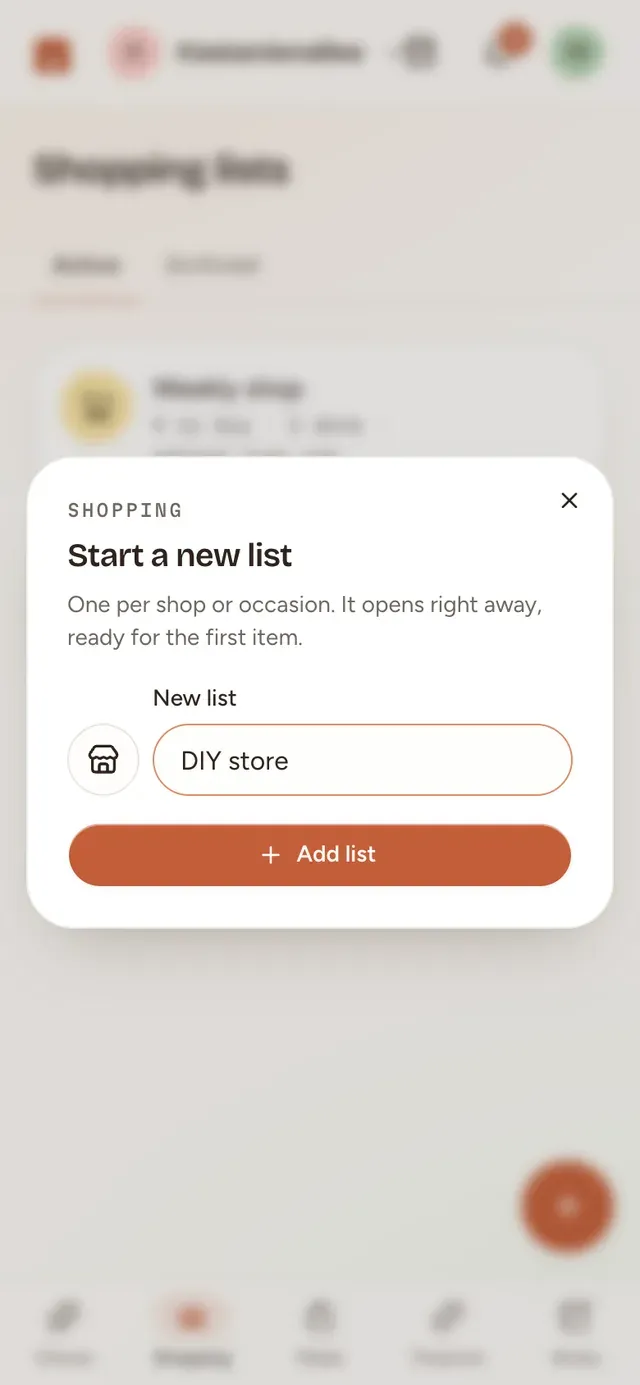
- Enter a name under New list, such as “DIY store”. Tap the icon beside it to choose one, or leave it on automatic.
- If your circle has two or more households, you can pick one under Household.
- Tap Add list. The new list opens, ready for the first item.
Rename, archive or delete a list
- Open the list and tap ⋯ next to its name.
- Choose what you’d like to do – rename the list, change its icon, archive it or delete it.
- Archiving asks you to confirm with Archive. The list leaves the overview but keeps its items; you’ll find it under Archived in Shopping lists, and Unarchive in its ⋯ menu brings it back.
- Deleting removes the list and all its items for everyone in the circle.
Good to know
- Items show who ticked them, not who added them.
- There’s no drag-and-drop; the order comes from the categories. Items without a category sit at the top.
- Adding the same thing twice gives you two entries – duplicates aren’t merged.
- A list holds up to 500 items.
- You’re never notified about your own changes. Others get one summary of a list’s changes after five minutes, not one ping per item.
The shopping list feature page shows live sync on two phones. The meal planner can fill a list from your week’s recipes, and the notes guide covers everything that isn’t a shopping item.
Questions and answers
- Why does Shopping open a list instead of the overview?
- Shopping opens the list you had open last on this device, because that’s usually the one you need. The back arrow takes you to all your lists.
- Does the list work in a shop without signal?
- Yes, once you’ve opened it before. Ticks and new items sync when you’re back online.