How to write shared notes in Homebears
This guide shows you how to keep the wifi password, the landlord’s number and the holiday packing list in notes everyone in your circle can edit. The short version – open Notes, tap the round + button, give the note a title and start typing; everyone else sees it live.
Create a note
- Tap Notes in the bottom bar.
- Tap the round + button (on a computer: New note).
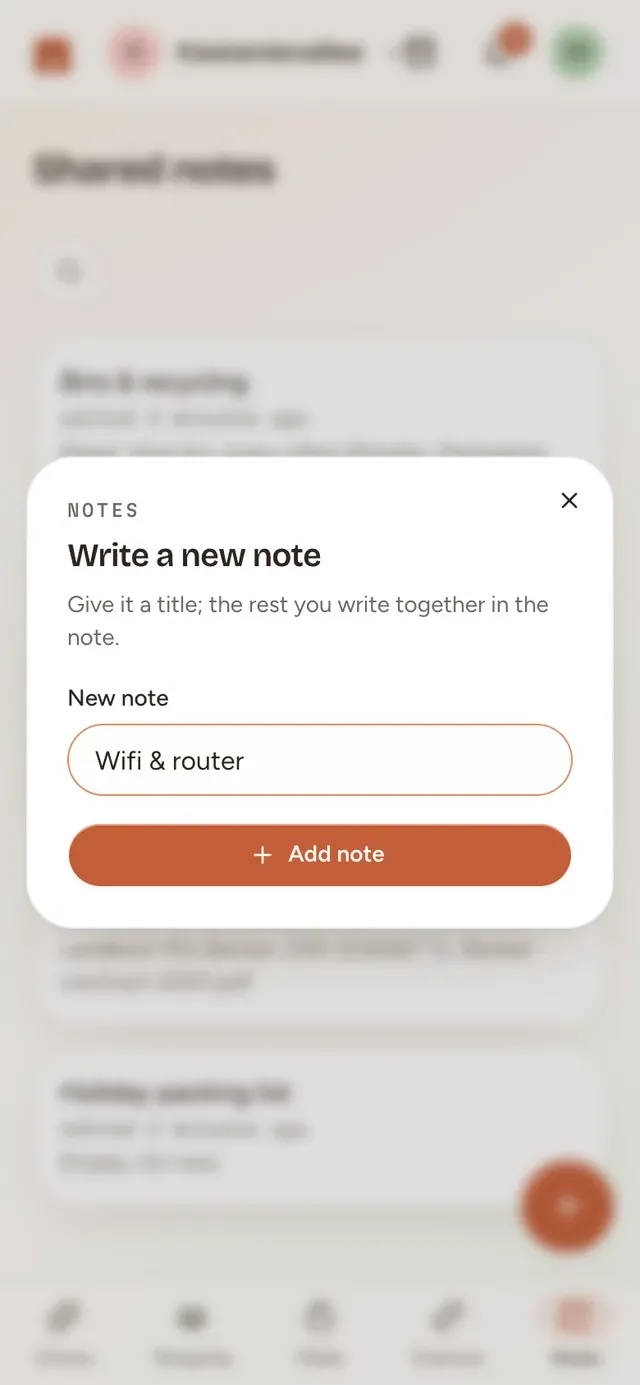
- Give the note a title under New note, such as “Wifi & router”.
- If your circle has two or more households, you can pick one under Household – or leave it on Whole circle.
- Tap Add note. The note opens, ready for you to write.
Write and format
Just start typing. A row of formatting buttons sits above the text and stays in reach while you scroll.
- Select some text, or place the cursor in a line.
- Tap a button to format it: headings in three sizes, bold, italic, strikethrough and code, a link, a bullet list, a numbered list, a Checklist, a quote or a divider. On a computer, hover over a button to see its name.
- Undo and Redo sit at the end of the row.
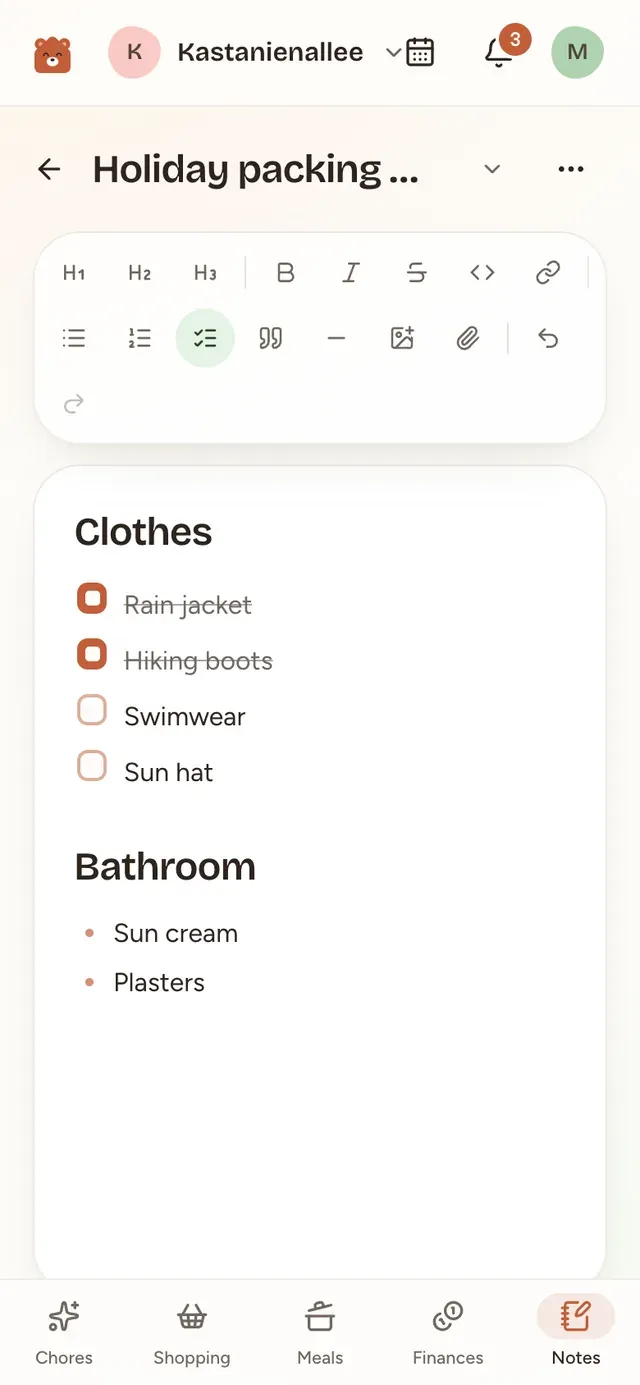
Checklist items can be ticked off by anyone in the circle, which makes them handy for packing lists and moving-in to-dos.
Add photos and files
- Place the cursor where the picture or file should go.
- Tap Add image to choose photos, or Attach file for a PDF, an office document, a text or a CSV file. You can also paste or drop them into the note.
- Wait a moment while they upload.
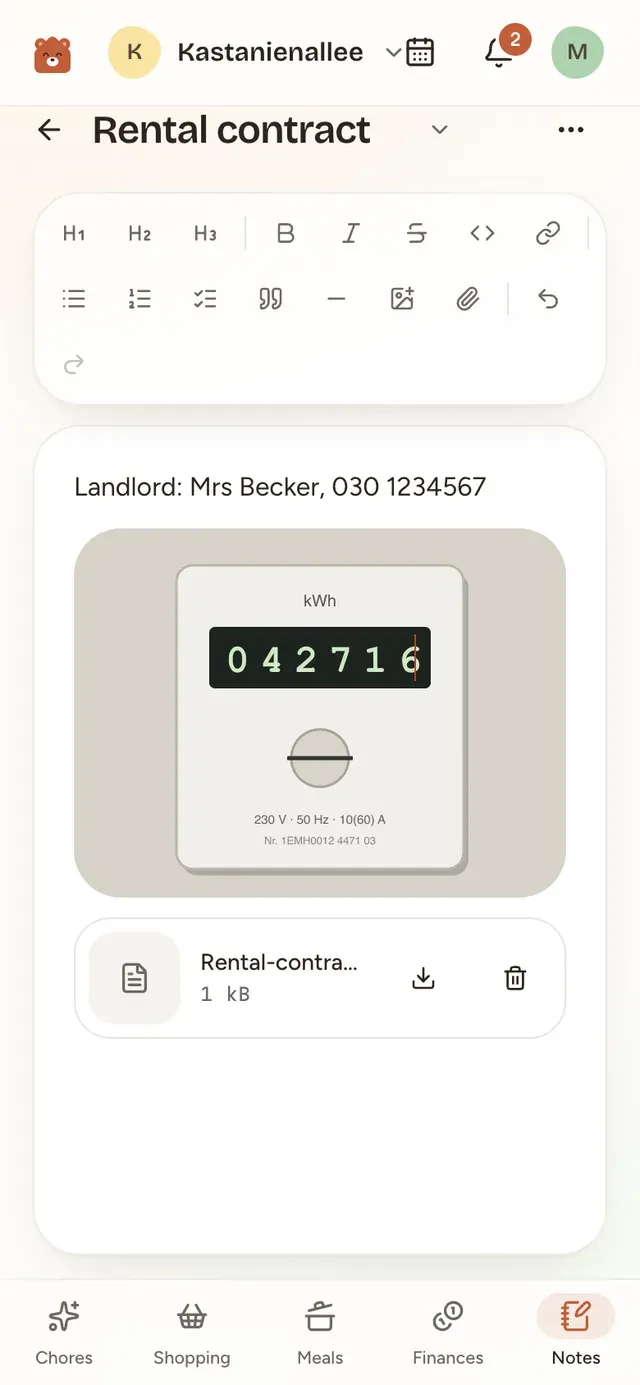
Each attached file shows its name and size. Tap the preview of a PDF or picture to open it, or the download button to save any file. The bin button removes the file from the note again.
Write together
When someone else has the same note open, their picture appears next to the title, and their cursor shows up in the text with their name on it. Everything either of you types appears for the other straight away.
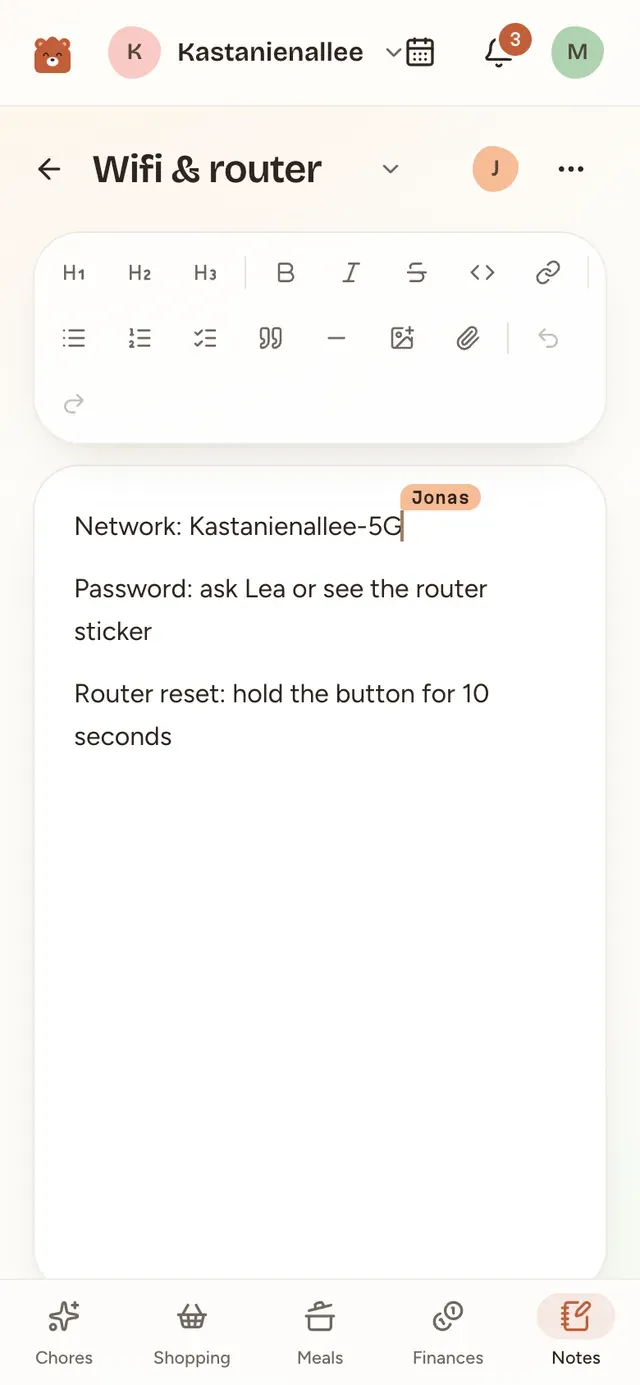
The small label next to the title tells you how the note is connected: live when changes go out straight away, offline when they’re waiting for a connection. Either way, your edits are kept.
Find a note
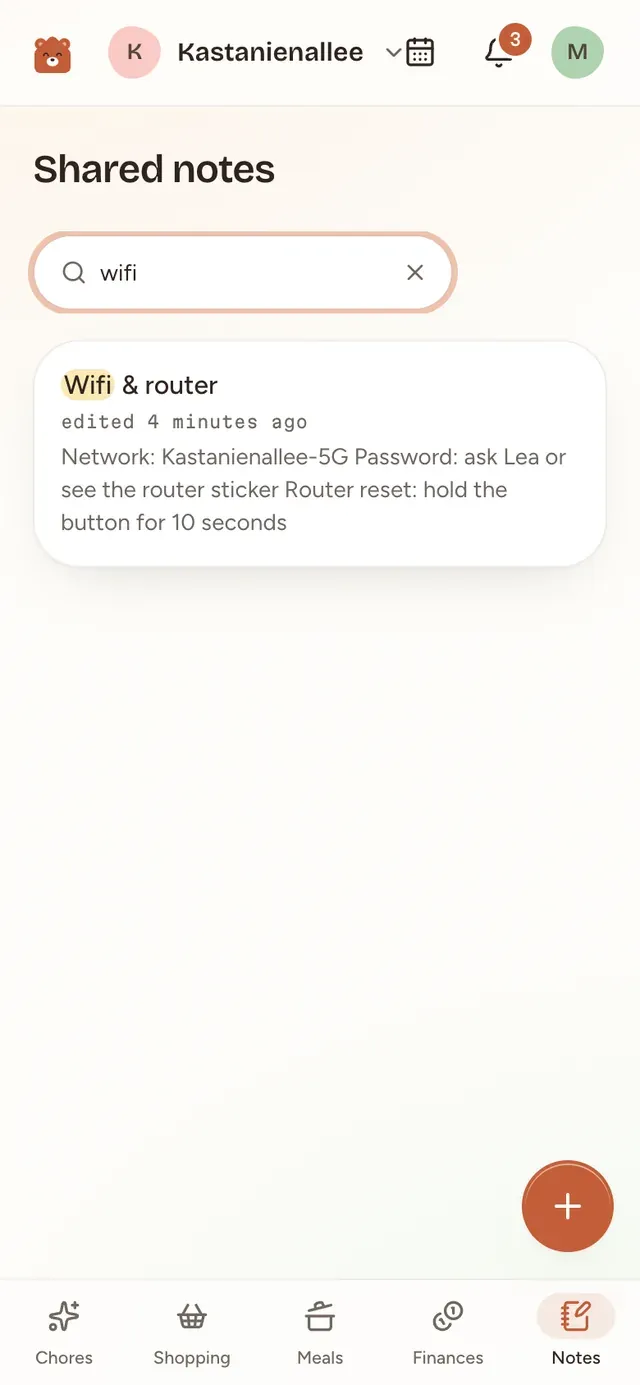
- On the Notes page, tap the magnifying glass and type a word. Homebears searches titles, text and the names of attached files.
- With two or more households, the household button next to it narrows the list to one household; All notes shows everything again.
- Already in a note? Tap the little arrow next to its title to jump to another one.
Rename or delete a note
- To rename a note, tap its title, type the new one and press Enter.
- To delete it, tap ⋯ next to the title and choose Delete note, followed by the note’s title. Confirm with Delete. The note is gone for everyone in the circle.
Good to know
- Files can currently be up to 50 MB each, and each circle has 1 GB of storage in total. These beta limits may change.
- Location and camera details are removed from photos before they’re saved.
- Files download through your account, not through a public link.
- A note’s household is chosen when you create it.
The notes feature page shows live editing in action. Shopping for the house? See the shopping list guide.
Questions and answers
- Who can see my notes?
- Everyone in the circle can see and edit every note in it. There are no private notes, so keep personal things in a different app.
- Can I write in a note without signal?
- Yes, if you’ve opened the note before. Your changes are kept and merged with everyone else’s once you’re back online.