How to get started with Homebears
This guide takes you from a new account to a circle your flatmates or family can join, in about five minutes. The short version – sign up, pick your language and look, name your circle and household, then send the invite link to the people you live with.
Create your account
- Open my.homebears.app/register on your phone.
- Enter your Name, Email and a Password.
- Tap Create account.
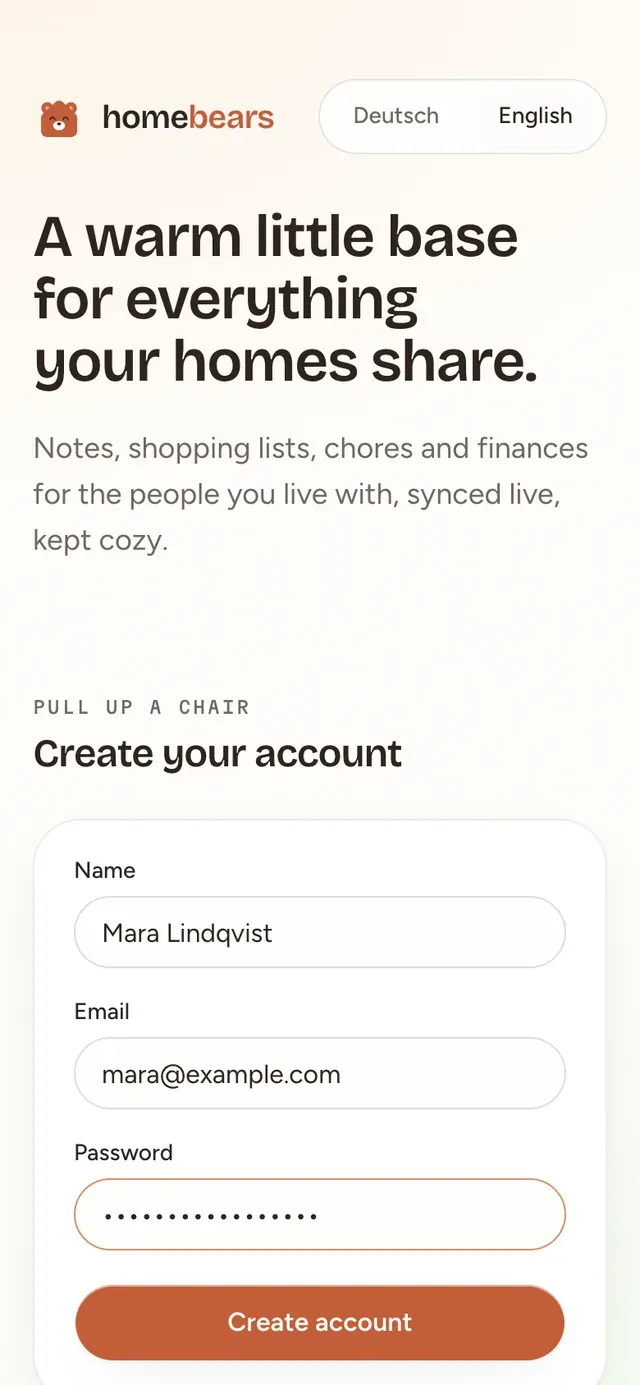
Homebears sends you an email to confirm your address. Until you’ve clicked the link in it, a small note at the top reminds you; Resend link sends a fresh one.
Set up your circle
A short setup follows. Your circle is you and the people you live with; a household is the place you look after together.
- Pick a Language and a Look (Light, Cozy or Dark) and tap Next.
- Give your circle a name, such as “Kastanienallee” or “Family”. The name is optional.
- Check the Currency. Shared expenses are kept in it, and it can’t change once money has been recorded. Tap Next.
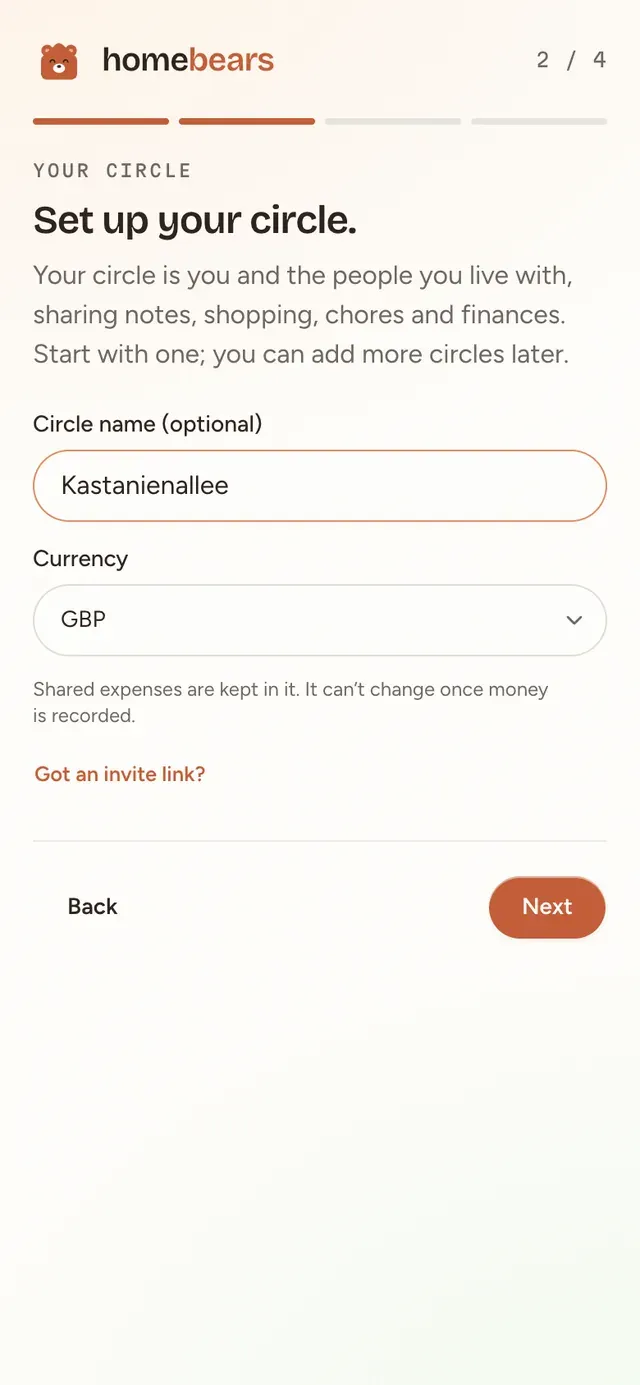
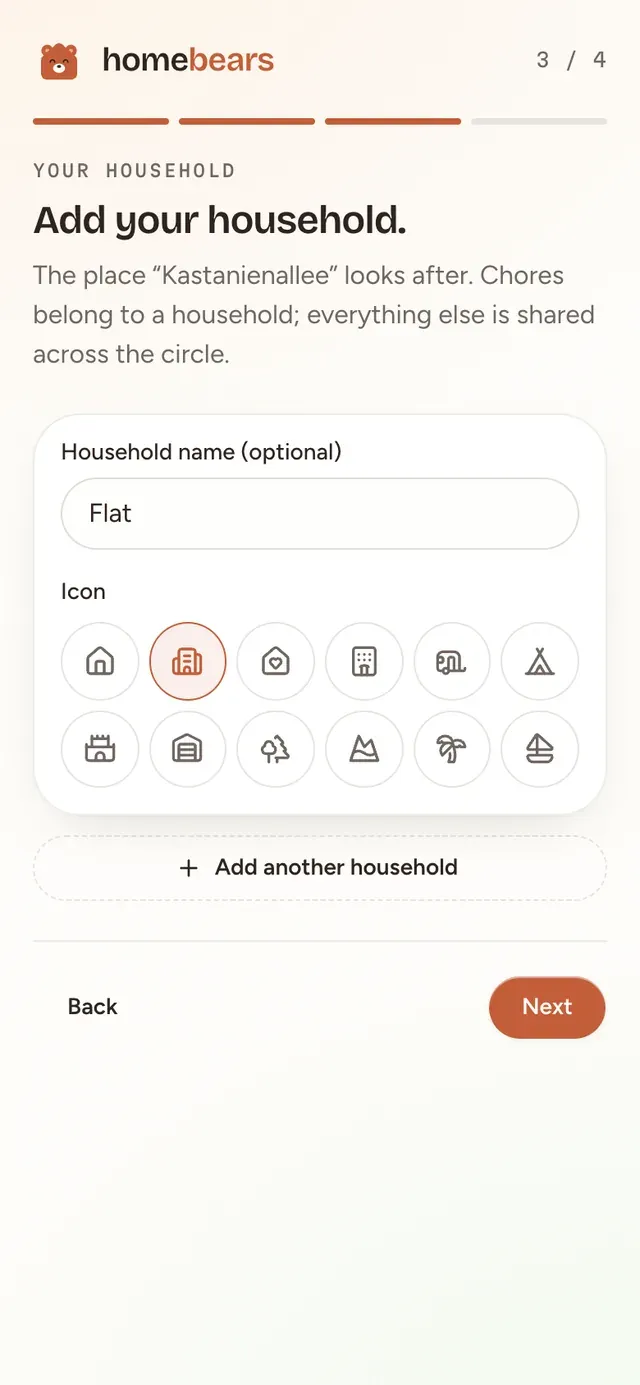
- Name your household and choose an icon – for a flatshare, “Flat” with the flat icon works well. If you leave the name empty, it’s called “Home”.
- Looking after more than one place? Tap Add another household for each one.
- Tap Next.
Invite who you live with
The last step creates an invite link for your circle.
- Tap Create invite link.
- Tap Share to send it in any chat, or Copy link to paste it yourself.
- Each link works for one person for 7 days. For the next person, tap Create another link.
- Prefer email? Enter their address under or by email and tap Send invite. That link only works for that address.
- Tap Finish.
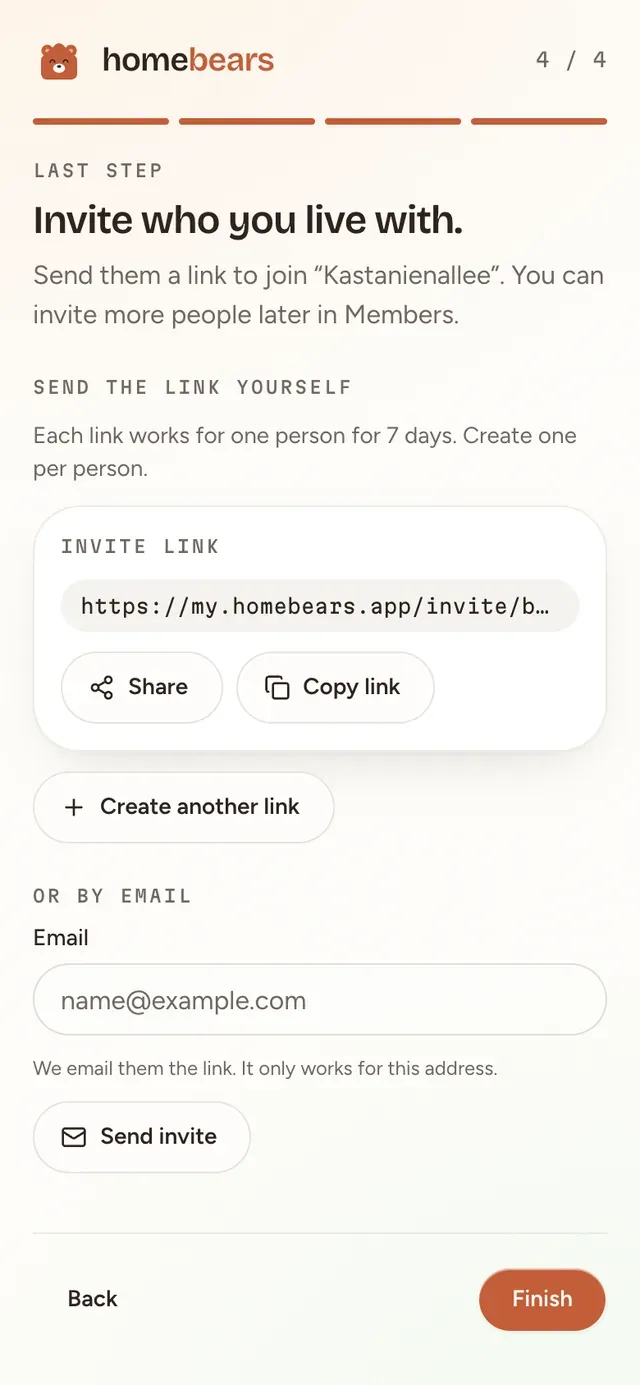
You can skip inviting for now and do it later under Members – see Circles and households.
Join someone else’s circle
If someone sent you an invite link, you don’t set up a circle of your own.
- Open the link. You’ll see who invited you and which circle you’re joining.
- Tap Create account & join (or I already have an account).
- Create your account, pick your language and look, and tap Join Kastanienallee – the button carries the circle’s name.
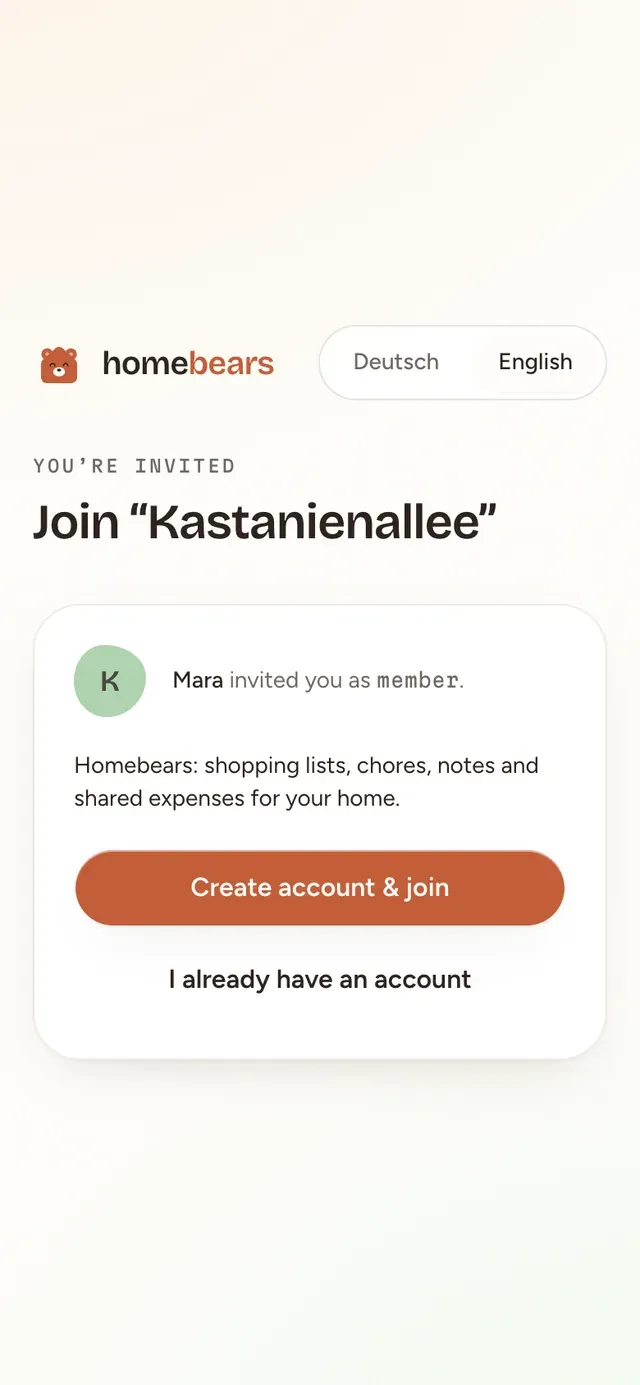
Already set up your own circle and only then got a link? Just open it while signed in and tap Join circle.
Find your way around
Your circle opens on Chores. On a phone, the bar at the bottom holds the five sections: Chores, Shopping, Meals, Finances and Notes. Where a section lets you add something, the round + button sits at the bottom right.
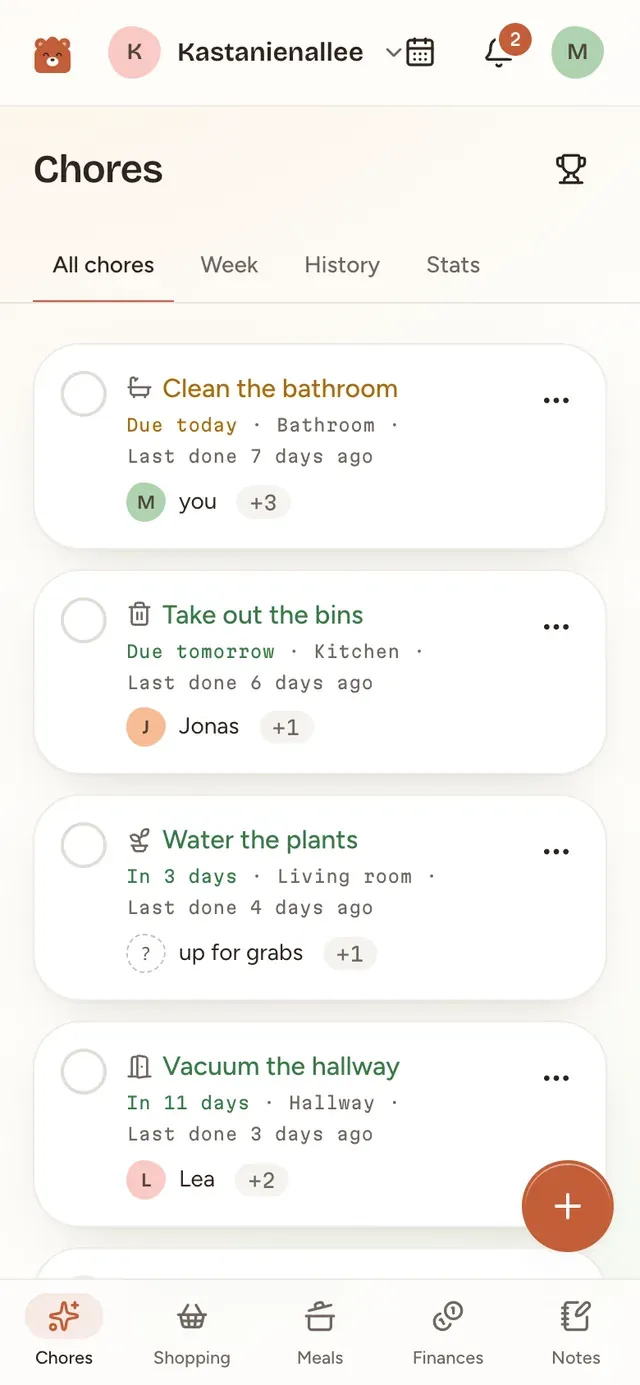
At the top you’ll find:
- the Homebears logo, which takes you to Home, your overview of what’s next
- the calendar and the bell for notifications
- your picture, which opens Circle settings, Settings and Sign out
On a computer, the sections are in a sidebar on the left, and the + button becomes a labelled button at the top right, such as New note.
Add Homebears to your home screen
Homebears is a web app, so there’s nothing to download from an app store.
- iPhone and iPad: open Homebears in Safari, tap the Share button and choose Add to Home Screen.
- Android: open Homebears in Chrome, tap the ⋮ menu and choose Install app or Add to Home screen.
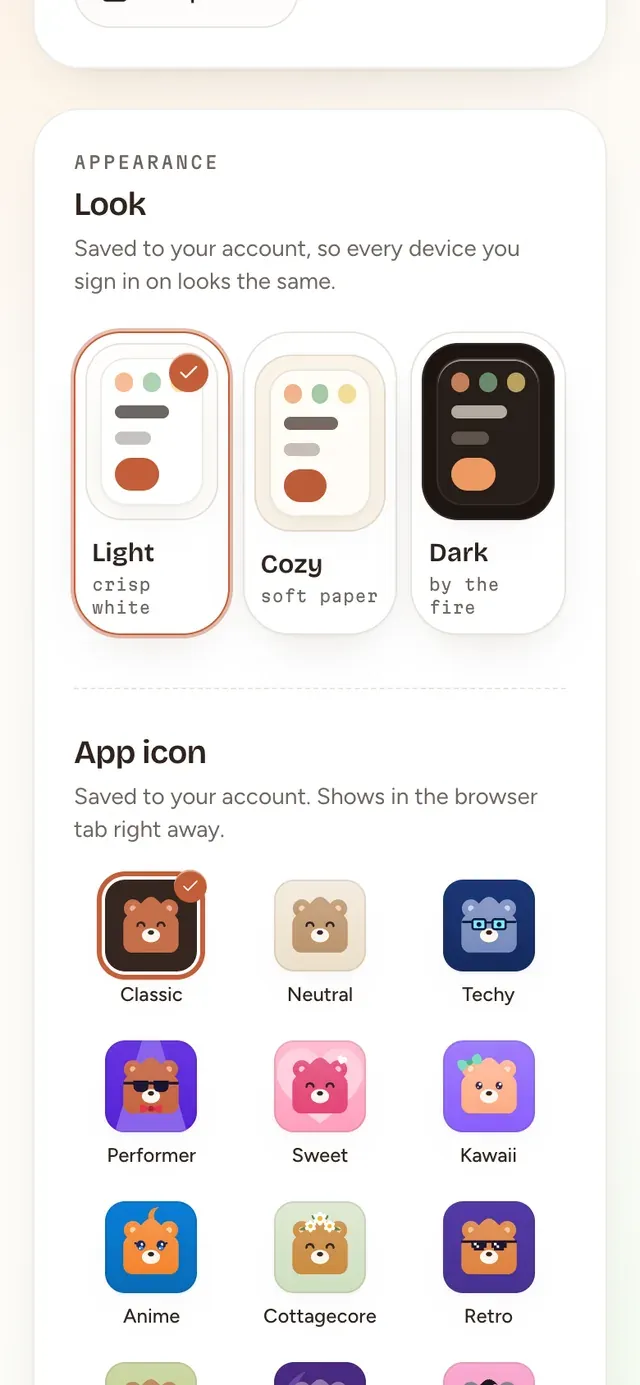
Want a different icon? Tap your picture, choose Settings and pick one under App icon before you add Homebears to the home screen – an icon that’s already there only changes if you remove it and add it again. The same page lets you change your Look at any time; Language is further down, below the app icons.
Delete your account
- Tap your picture at the top right and choose Settings.
- Scroll to the bottom and tap Delete account.
- Homebears shows what happens to each of your circles: circles only you are in are deleted with everything in them, and you leave all others. If you’re the last owner of a circle, pick who owns it after you.
- Enter your password and tap Delete my account. You’re signed out on all your devices, and we send you an email.
Your account is deleted after 14 days. Changed your mind? Sign in again before then, and the deletion is cancelled.
When it is deleted, your profile, name, email address and picture, sign-ins, push notifications, API keys and settings are gone. Notes, lists, recipes, chores and expenses you shared stay in circles others are still in. Expenses and payments you were part of stay as well, so everyone else’s balances remain right; they show you as “Deleted user”. Our backups keep data for up to six months before it is gone from them, too. Can’t sign in any more? Write to us at the address in the privacy policy and we’ll delete the account for you.
Good to know
- Homebears speaks English and German. Each person picks their own language, and emails and notifications follow it.
- Signing in is by email and password; there’s no sign-in with Google or Apple.
- Your look is saved to your account, so every device you sign in on looks the same.
Next, read how circles and households work or start your first shopping list. The features overview shows everything Homebears can do.
Questions and answers
- Do I need to install anything from an app store?
- No. Homebears runs in the browser. You can add it to your phone’s home screen, and it then opens like an app.
- Someone sent me an invite link. Do I still have to set up a circle?
- No. Open the link and create your account from there – you only pick your language and look, then you join their circle straight away.