How to plan meals and import recipes in Homebears
This guide shows you how to collect recipes, plan your household’s week and turn it into a shopping list. The short version – add recipes under **Meals** › **Recipes**, fill the days in the **Week** tab with **+ Add**, then tap **Add week to shopping list**.
Import a recipe from a link
- Tap Meals in the bottom bar and open the Recipes tab.
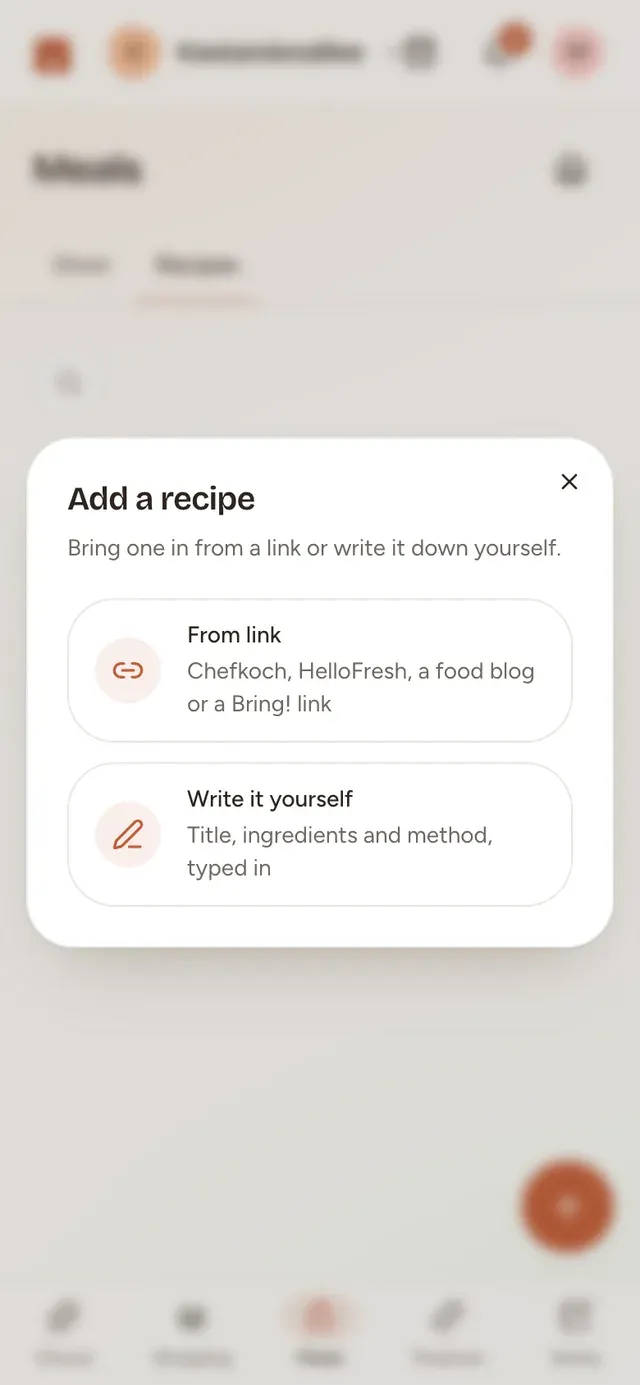
- Tap the round + button. On a computer, Add recipe is at the top right.
- Choose From link.
- Paste the address of the recipe page under Link and tap Import.
- Homebears opens the recipe as a draft. Check the Title, Servings, ingredients and Method.
- Tap Add recipe.
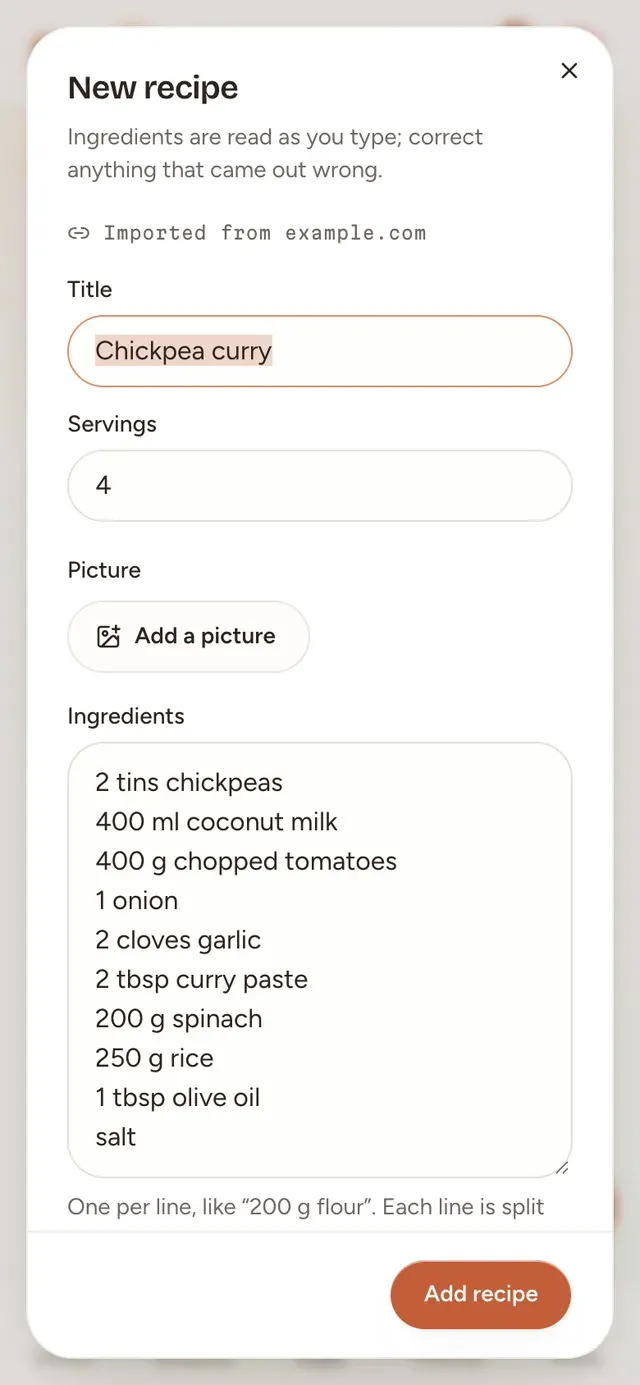
Each ingredient line is split into amount, unit and name, shown as a chip under the list. Tap a chip to correct it, or to tick Optional for things the recipe works without. Homebears ticks it for you when a line says “to taste” or “optional”. Always at home (all recipes) puts it in your circle’s pantry, so it starts unticked for every recipe.
No link? Choose Write it yourself instead and type the title, ingredients (one per line, such as “200 g flour”) and method. Add a picture adds a photo of the dish.
Share a recipe straight from the browser
This works on Android and in Chrome on a computer, once Homebears is installed as an app.
- On the recipe page in your browser, tap Share and choose Homebears.
- Homebears opens Meals and asks whether to import from that site. Tap Import.
- Check the draft and tap Add recipe.
If you’re in more than one circle, Homebears uses the one you had open last, or asks Which circle gets the recipe?
Plan the week
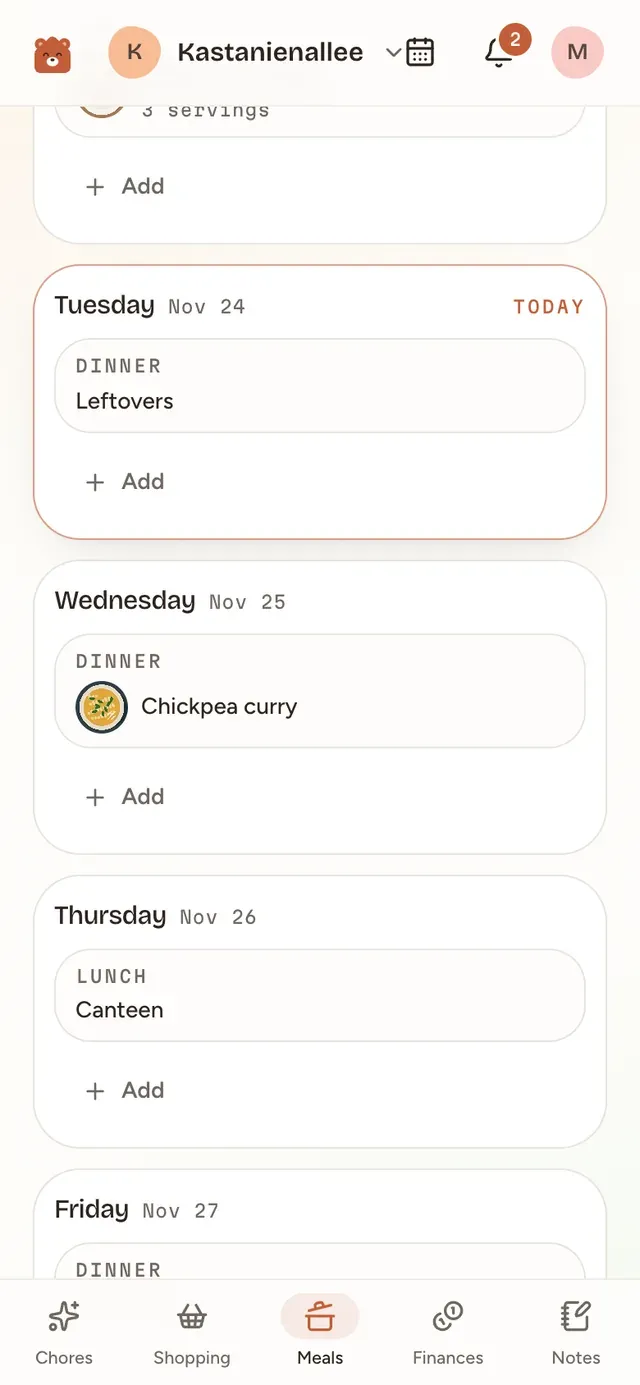
- Open the Week tab. It starts with this week; the arrows switch weeks and Today brings you back.
- On a day, tap + Add and choose Breakfast, Lunch or Dinner.
- Search under Recipe or dish and tap a recipe.
- Adjust the servings with − and + if you’re cooking for more or fewer people, then tap Save.
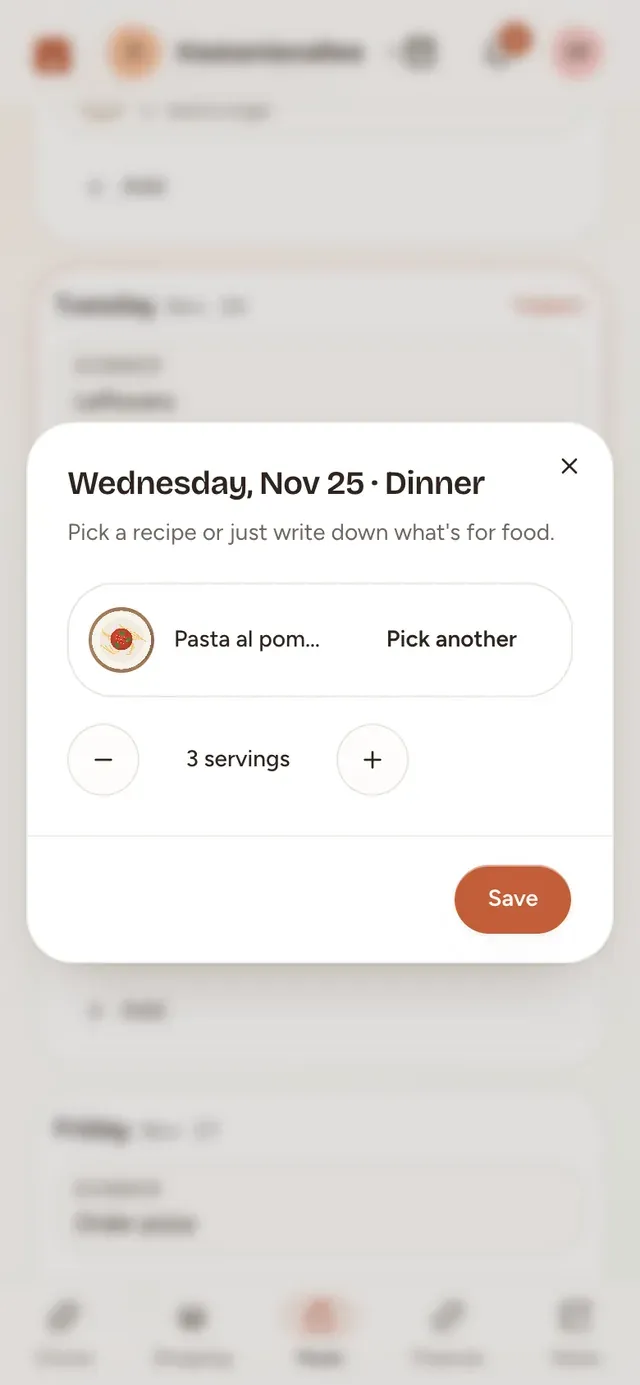
Not cooking from a recipe? Type something like “Order pizza” and tap Save “Order pizza” as text. To change or clear a planned meal, tap it and choose Pick another or Remove.
Send the week to the shopping list
- In the Week tab, tap Add week to shopping list.
- Homebears collects the ingredients of the week’s recipes, scaled to your servings. Anything in your pantry or marked optional starts unticked, labelled “In pantry” or “Optional”.
- Untick what you already have, or use Tick all. Always at home next to a line adds it to the pantry, or takes it out again.
- Under Shopping list, choose the list, such as “Weekly shop”.
- Tap Add … items.
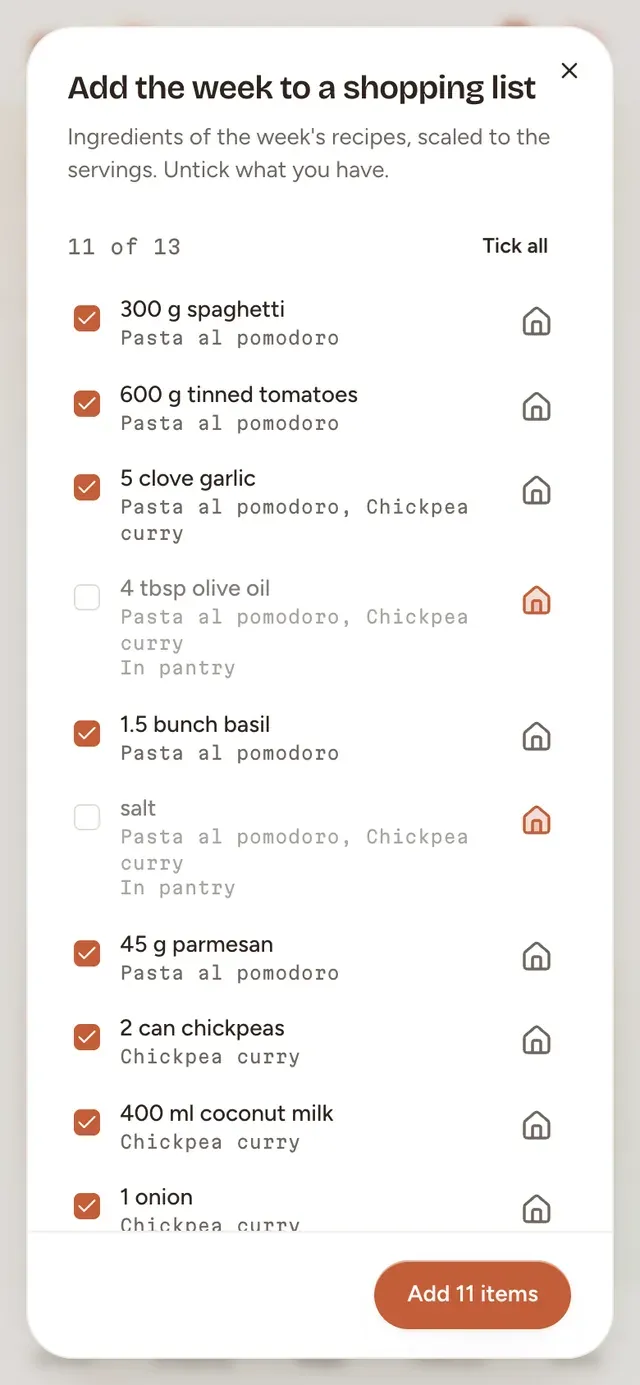
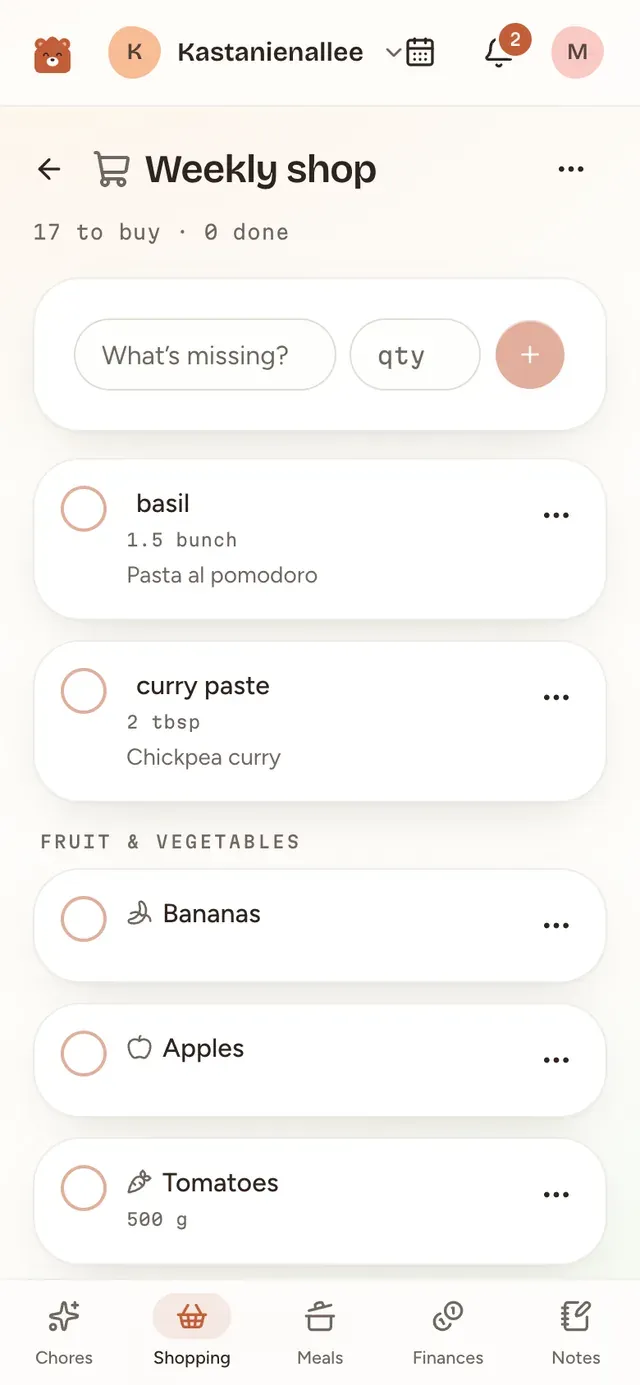
When it’s done, tap Open Weekly shop to go to the list, or Done to stay in the plan. Each item’s note says which recipe it’s for.
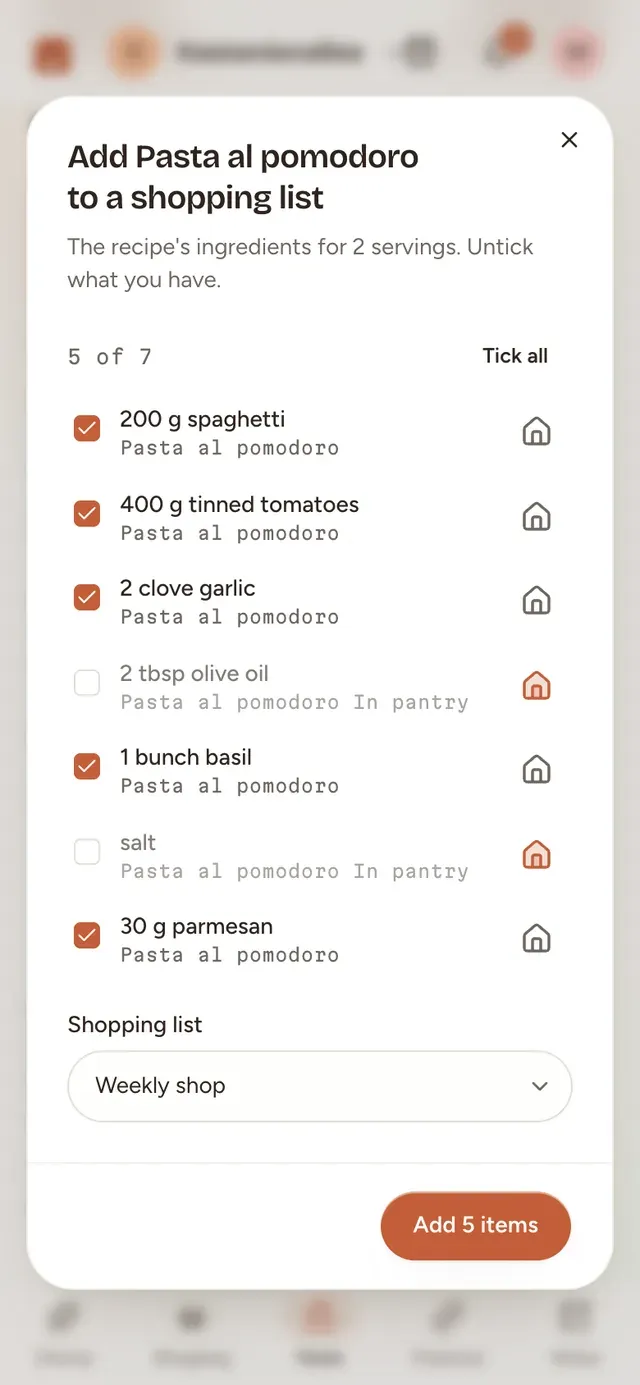
To shop for a single recipe, open it, set the servings and tap Add to shopping list. The same dialog opens with that recipe’s ingredients at the servings shown.
Keep a pantry
The pantry lists what your circle always has at home. It starts with salt, pepper, oil, olive oil, sugar, flour and water, and everyone in the circle can change it. Whatever is in it starts unticked whenever recipes go to the shopping list.
- In Meals, tap the house icon (Pantry) at the top.
- Type an ingredient and add it, or remove one you no longer keep.
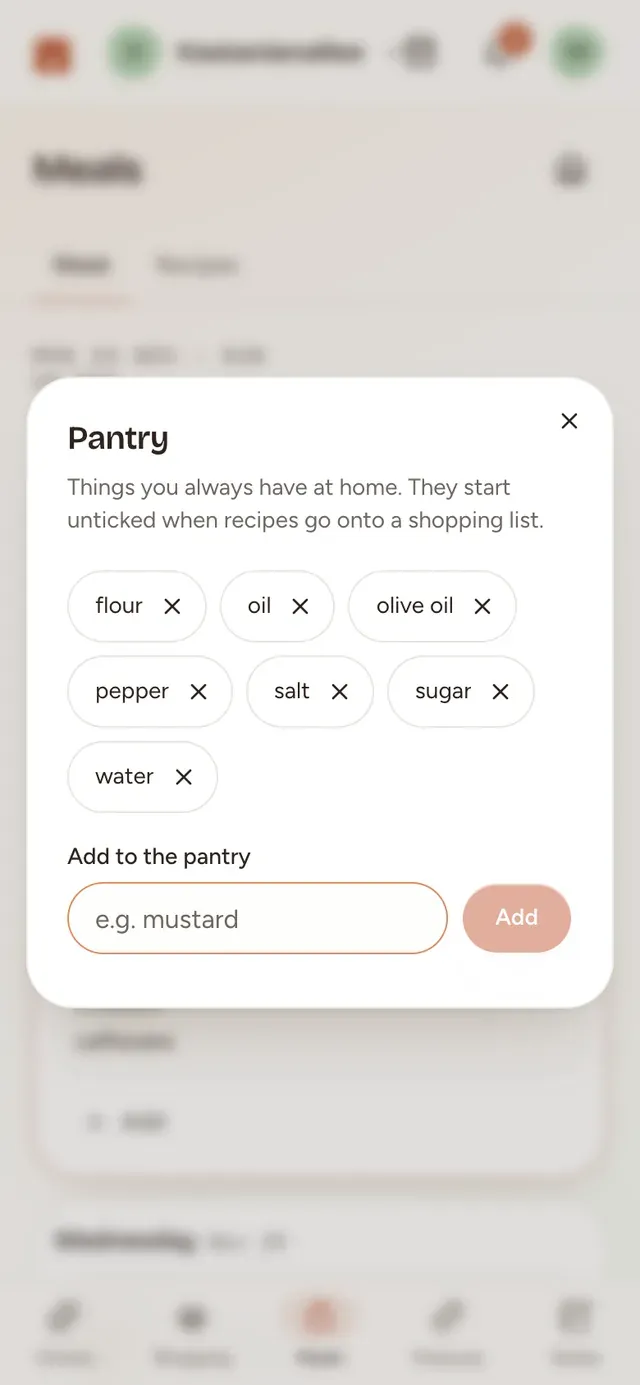
You can also add an ingredient from its chip in the recipe form with Always at home (all recipes), or from the shopping list dialog with Always at home.
The pantry looks past spelling and language: “Olivenöl” counts as olive oil, and “onions” as onion. Different groceries stay apart, though, so red pepper isn’t pepper and sesame oil isn’t oil.
Good to know
- Open a recipe and change the servings to see the amounts for more or fewer people – the saved recipe stays as it is.
- Meal plans belong to one household, recipes to the whole circle. With more than one household, choose the household above the week.
- Matching ingredients are added up only when name and unit are the same, so “tomato” and “tomatoes” stay separate.
- Meals planned as text bring no ingredients to the shopping list.
- Planned meals also show up in the shared calendar.
More on the meal planner feature page. Related guides: shopping list and shared calendar.
Questions and answers
- Which links can I import?
- Pages that mark up their recipe in the schema.org format – Chefkoch, HelloFresh, most food blogs and Bring! recipe links. If a page has nothing Homebears can read, you can write the recipe yourself instead.
- Can I share a recipe to Homebears from my iPhone?
- Not from the share sheet. Copy the link in Safari and paste it under “From link” instead.