How to split expenses and settle up in Homebears
This guide walks you through adding an expense, splitting it, settling up, and setting budgets and recurring bills. The short version – tap **Finances**, tap the round + button, say what it was, who paid and how to split it, and the **Balances** tab shows who owes whom.
Add an expense
- Tap Finances in the bottom bar.
- Tap the round + button. On a computer, New expense is at the top right.
- Under What was it?, type something like “Groceries”. Homebears guesses the Category from that.
- Enter the Amount. Paid in another currency? Choose it next to the amount.
- Check the Date and the Category. To make a new category, type its name and tap Add “…”.
- Under Paid by, choose who paid. It starts with you.
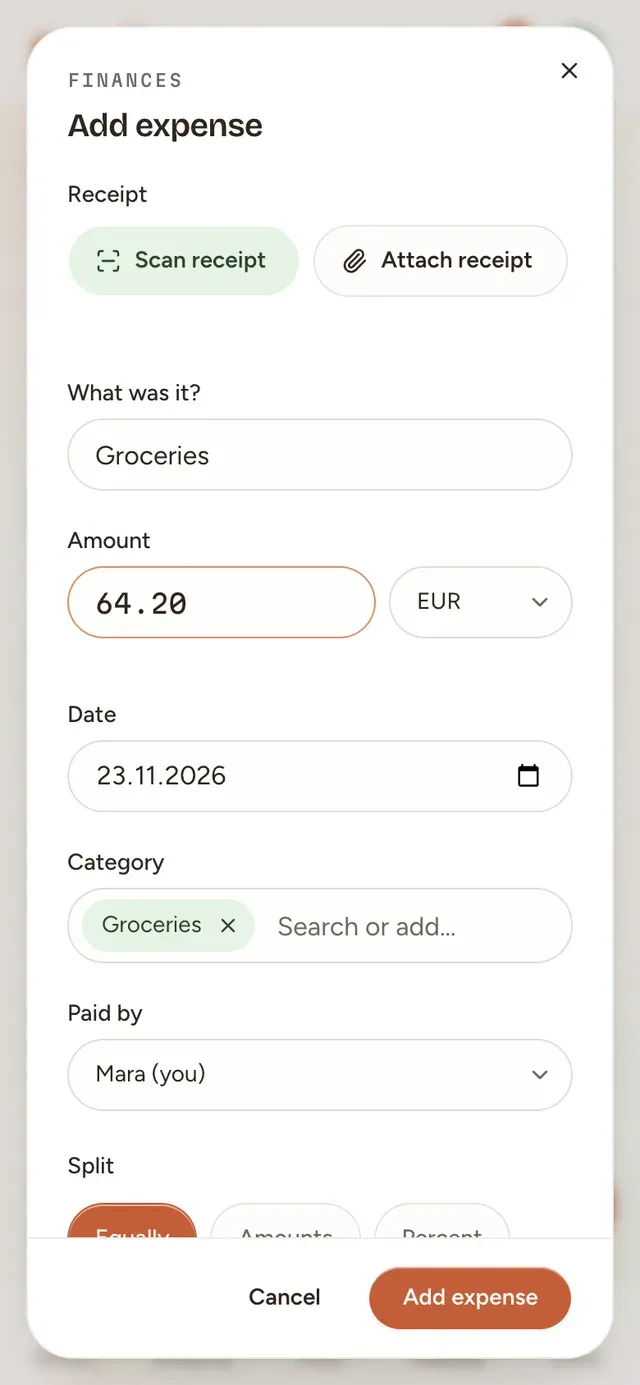
Got a paper receipt? Scan receipt at the top of the form fills in the details from a photo – see the receipt scanner guide.
Split it
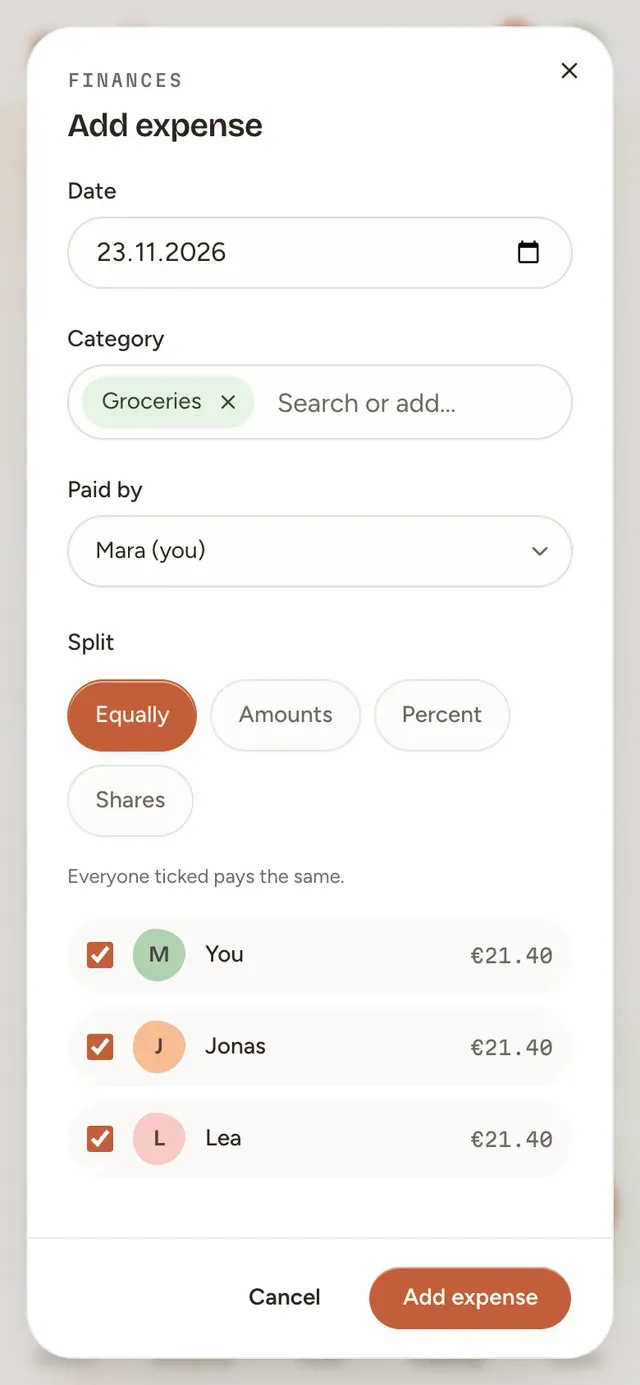
- Under Split, choose how to share the cost:
- Equally – everyone ticked pays the same.
- Amounts – type what each person owes.
- Percent – percentages that add up to 100.
- Shares – weights, e.g. 2 for a couple.
- Untick anyone who wasn’t part of it. For Amounts, Percent and Shares, type a value next to each name.
- Tap Add expense.
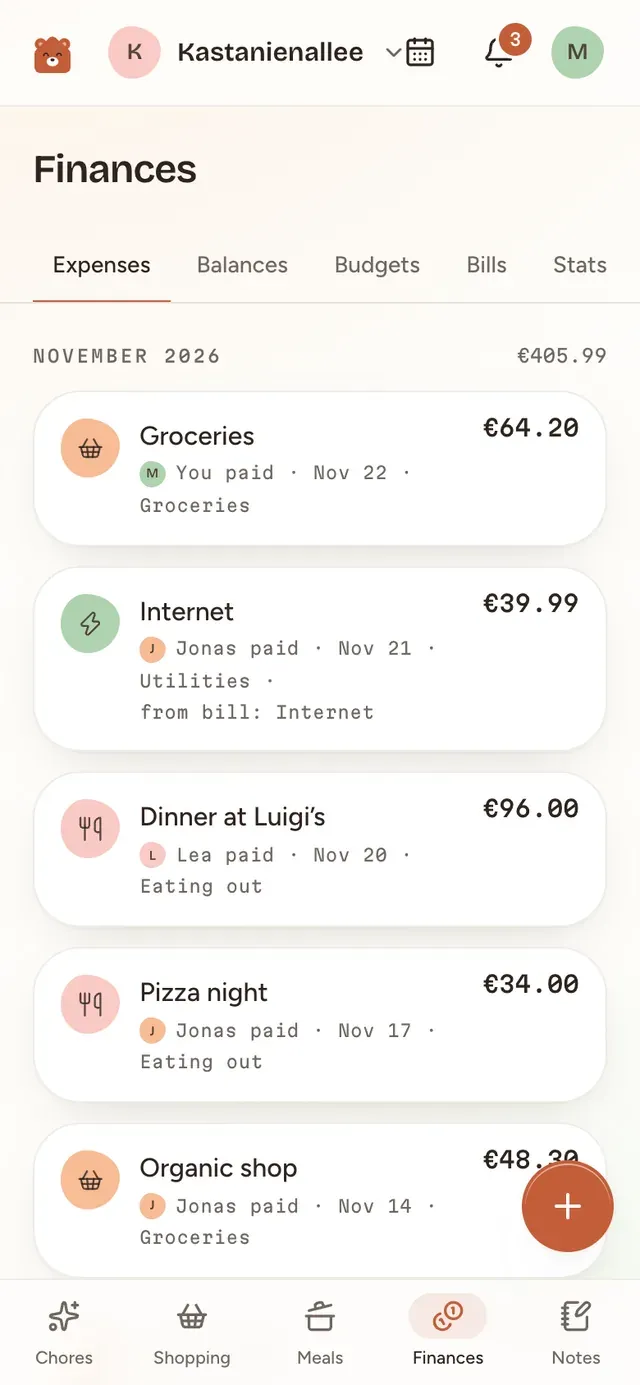
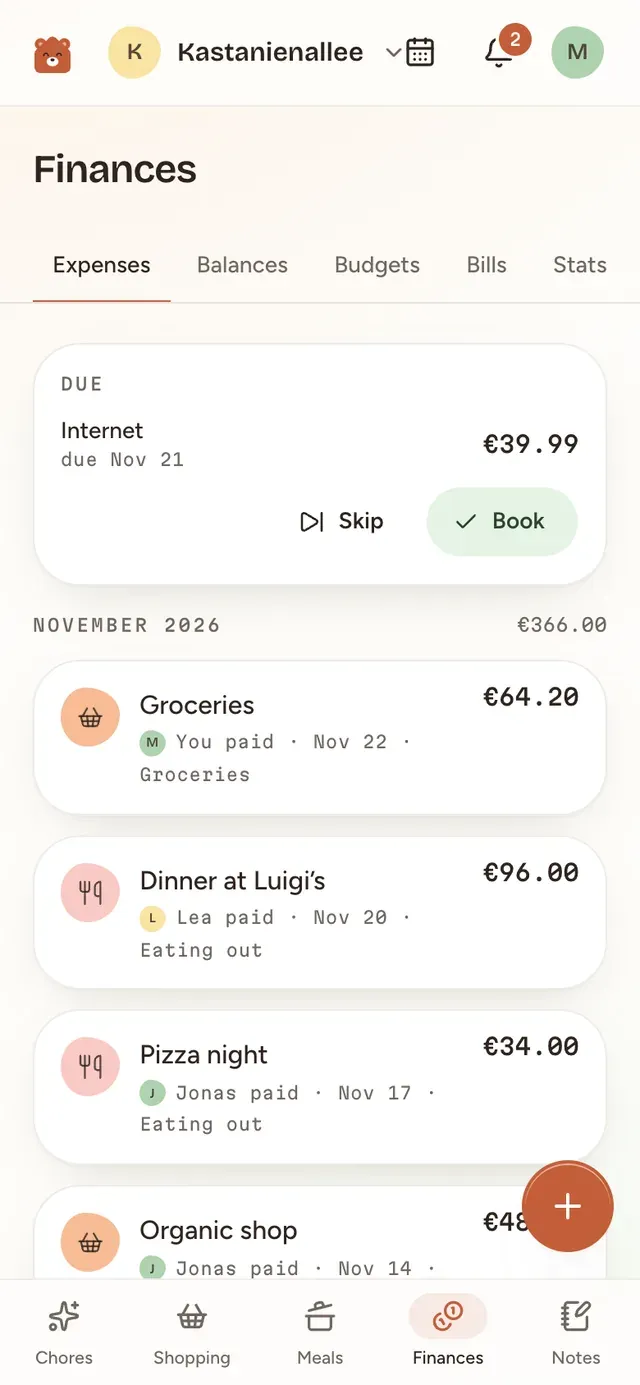
The expense lands in the Expenses tab, grouped by month. Tap an expense to change it, or to delete it with Delete.
See who owes whom and settle up
- Open the Balances tab. Each person shows whether they get money back or still have to chip in.
- Under settle up, Homebears lists the fewest payments that make everyone square, such as “Jonas → Mara”.
- Pay each other outside the app, then tap Record payment next to that line.
- Confirm with Record payment. The balances update for everyone.
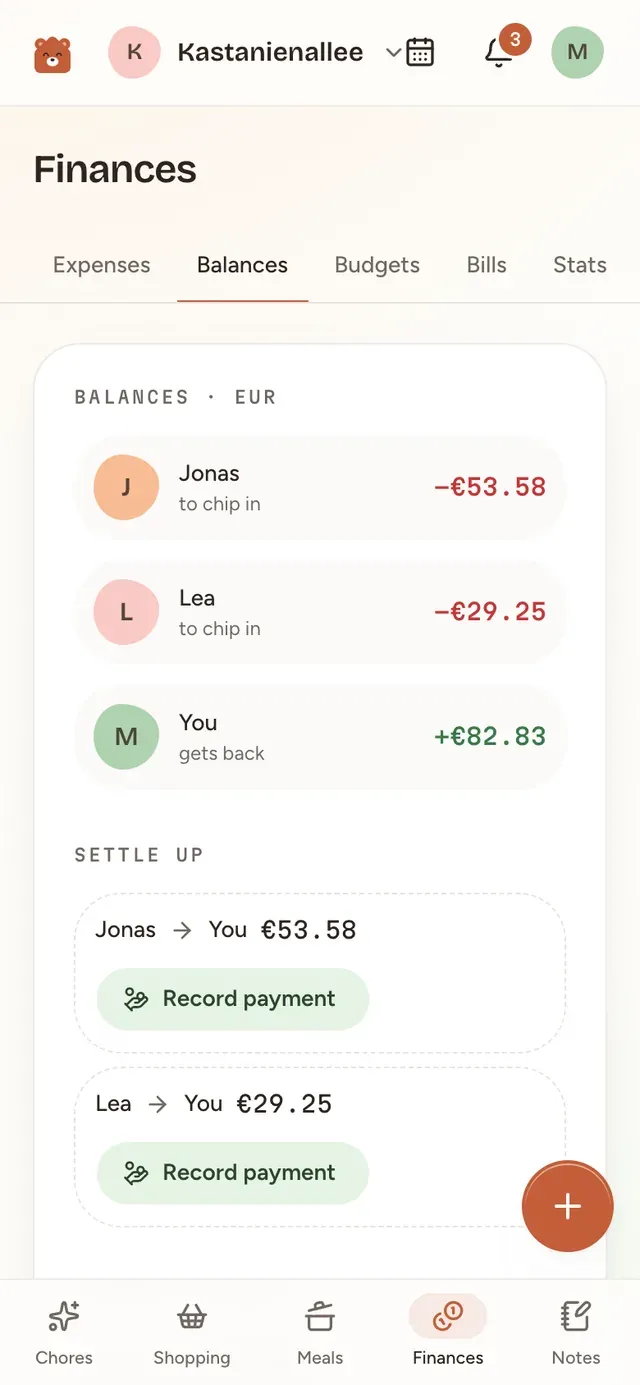
On the Balances tab, the round + button turns into Settle up and opens the same payments in a dialog. Recorded something by mistake? Under recent payments, tap ⋯ next to the payment and undo it.
Set a budget
- Open the Budgets tab and tap the round + button. On a computer, it’s New budget.
- In Categories & budgets, scroll to new budget.
- Choose the Category, a period under Per – Week, Month or Year – and the Limit.
- Tap Add budget.
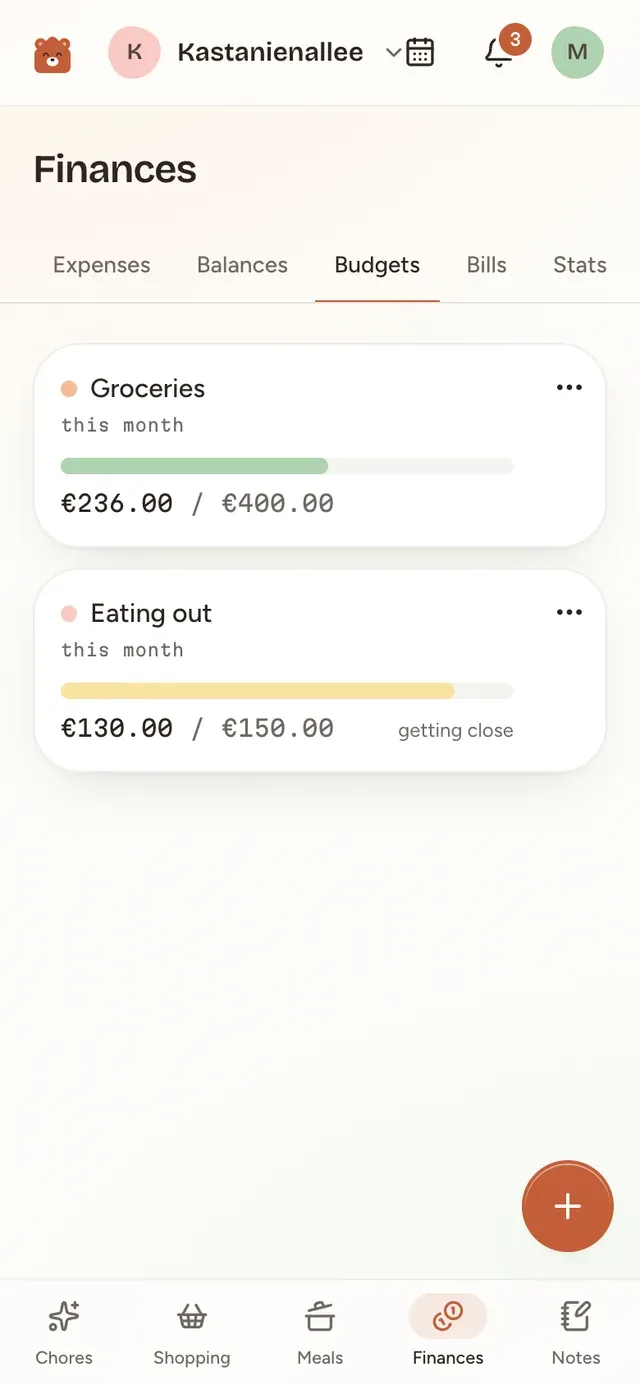
The bar fills up as expenses come in and says “getting close” before you hit the limit. Need a category that isn’t there? Add it in the same dialog under New category, pick a Color and tap Add.
Add a recurring bill
- Open the Bills tab and tap the round + button. On a computer, it’s New bill.
- Fill in What is it?, the Amount, the Category and who pays, then set the split as for an expense.
- Under How often, choose Monthly, Every 3 months or Yearly, then the Day of the month and First due from.
- Under When it’s due, choose Book automatically or Ask before booking.
- Tap Add bill.
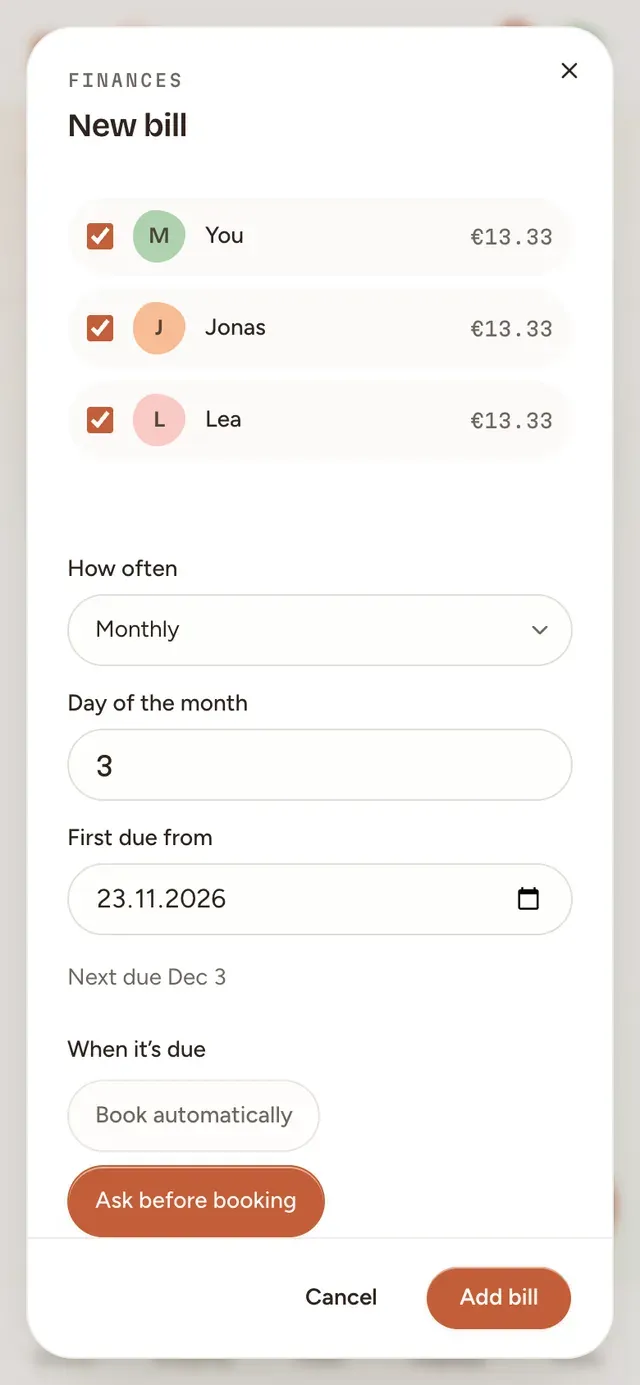
A bill that asks first shows up in a Due card at the top of the Expenses tab. Tap Book – you can change the amount if this one differs, like a meter reading – or Skip if nothing is owed this time.
Good to know
- Balances are shown in the circle’s main currency. It can be changed only until the first money is recorded.
- The Stats tab charts what each person paid and how balances moved over time.
- Bill due dates also show up in the shared calendar.
- There’s no bank import, no payment through the app and no private expenses.
More about shared money on the shared expenses feature page. Related guides: receipt scanner and notifications.
Questions and answers
- Does Homebears send the money for me?
- No. You pay each other the usual way – bank transfer, cash, whatever suits you – and then tap “Record payment” so the balances are square again.
- Can I add an expense in another currency?
- Yes. Pick the currency next to the amount. Homebears converts it at the ECB rate of the expense date and shows the converted amount right under the field.
- Can I keep an expense private?
- No. Every expense is visible to everyone in the circle. Personal spending doesn’t belong in a shared circle.